

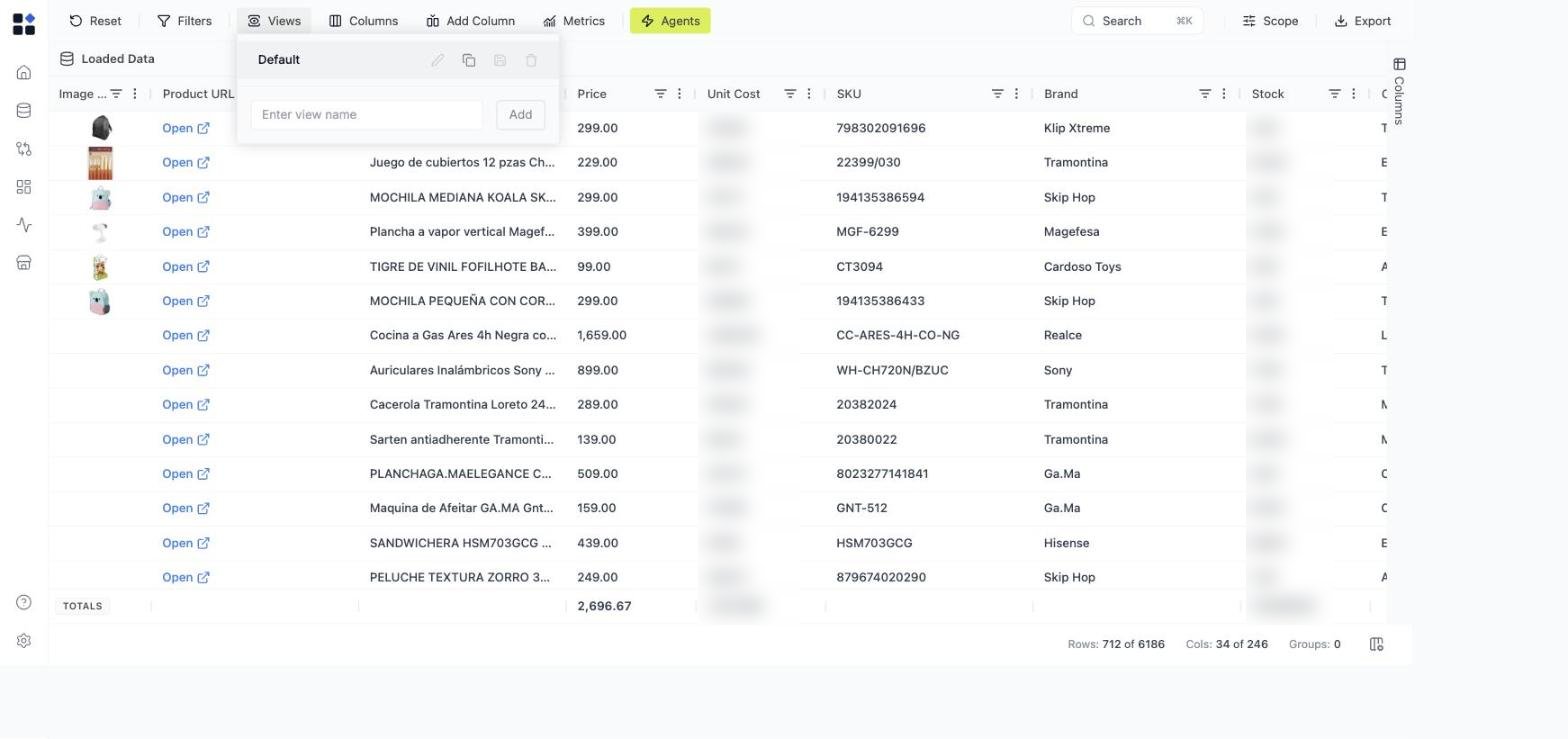
- visible columns
- column order
- filters, including quick filters
- sorting
- grouping
Creating a view
- Configure the grid (columns, filters, sorting).
- Click Views in the toolbar.
- Enter a name for the view.
- Click Add.
Managing views
Inside the Views panel you can:- Rename a view
- Duplicate a view to create variations
- Save the current layout under a name — your live grid edits autosave continuously, so saving a view is about capturing a named layout you can switch back to, not about avoiding lost work
- Delete a view if it is no longer needed
Quick filters
Beyond the per-column filter icons in the grid header, a single Filters menu lets you show, configure, add, and remove quick filters - the filters you reach for most often - from one place. Quick filters are saved as part of a view, so a saved view captures not just which columns are visible but the exact filtered slice your team works from.Best practices
- Use clear names like Pricing Analysis, Promo Monitoring, or Margin Control.
- Keep the Default view simple.
- Duplicate views when creating variations for different tasks.
A Pricing Review view might include columns like Price, Competitor Price, Margin %, Sales, and Elasticity to help pricing managers quickly identify opportunities.