

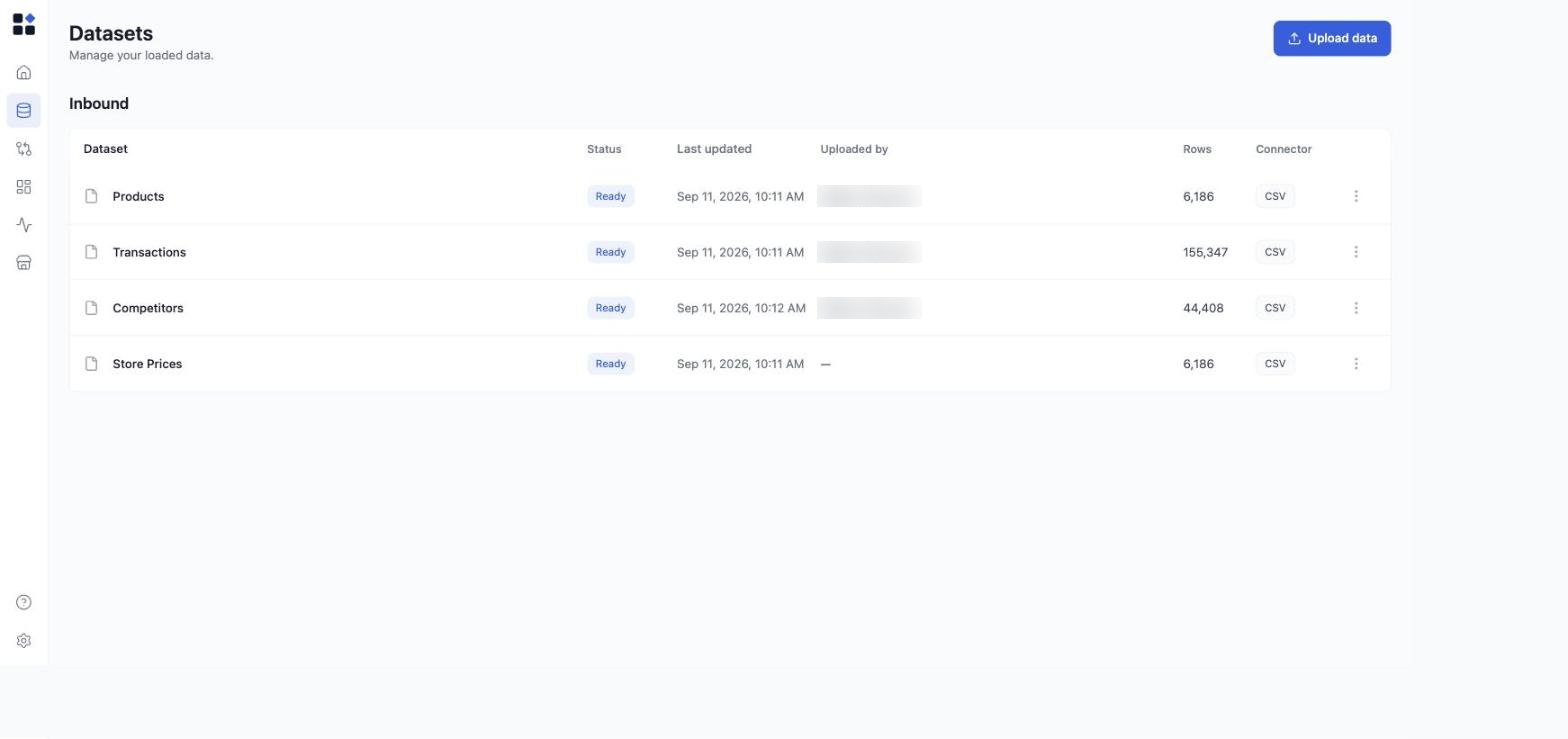
What you’ll see
Datasets are grouped by direction, so it’s clear at a glance what is coming into Retailgrid and what is going back out.Inbound
The data you load into Retailgrid. One row per dataset:
Each row shows:
Outbound
The data Retailgrid publishes back to your systems. Today this is your Approved prices: the prices your team signed off in Price Approval, on their way to a connected destination. An outbound row shows its publish state rather than a load state -Pending while approvals are waiting to go out, Publishing while a push is running, then Published, or Partial success / Failed when some or all of the batch didn’t land. Pending approvals can be cancelled before they publish.
The Outbound group only appears once you have a destination connected to publish to. See Connect Shopify.
Upload a new dataset
Click Upload data in the top-right corner. The Upload Data modal opens; pick the dataset type (Products, Transactions, Competitors, Store Prices) and select your file. For the field requirements per dataset, see:- Products
- Sales / Transactions
- Competitor Prices
- Product store data — for multi-store retailers
Replace, download, or delete a dataset
Use the three-dot menu at the right of any dataset row to:- Replace the file — upload a fresh CSV or XLSX without changing the dataset’s role. The new file replaces the previous version’s rows and the row count updates accordingly.
- Download the current file — useful for reviewing what’s currently loaded or sharing with a colleague.
- Delete the dataset.
Status values
Inbound datasets carry a load state:
While an upload is being parsed, follow it in Runs rather than on this page - that’s where a failed import shows its error and the rows that caused it.
Outbound datasets carry a publish state instead:
Pending, Publishing, Published, Partial success, Failed, or Cancelled.
When to upload vs replace
- First time a dataset type is loaded — use Upload data and pick the type.
- Refreshing data you already loaded (e.g. monthly product master refresh, daily competitor price feed) — use Replace on the existing row. This keeps grid bindings intact. Replaced datasets are picked up by the nightly grid refresh; existing grids show the new rows the next morning without any further action.
- Switching to a totally different schema — delete and re-upload, then expect to remap fields.