

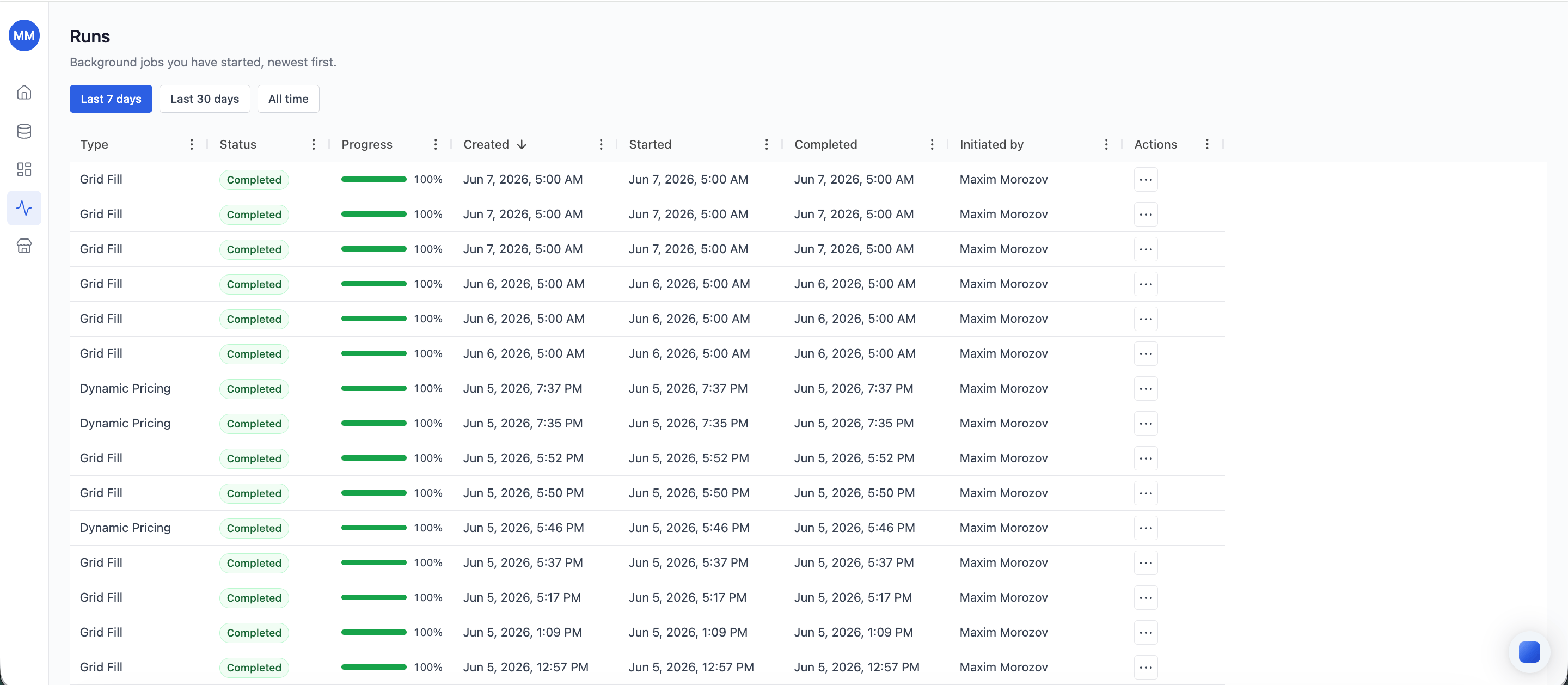
What shows up in Runs
Any job that takes more than a moment runs asynchronously. The Runs section captures:- CSV / XLSX imports - kicked off when you upload a dataset.
- Agent runs - Dynamic Pricing, Price Optimization, Pricing Strategy, Product Roles, Price Monitoring, and Base Price Performance.
- Dataset rebuilds - triggered when you replace a dataset.
- Bulk operations - large multi-grid actions where applicable.
Time window
By default the Runs list shows runs from the last 7 days. Switch to Last 30 days or All time with the buttons above the list. Most teams stay on the 7-day default - older runs rarely need attention and the shorter window keeps the list scannable.Active runs badge
The Runs icon in the left sidebar shows a small badge with the number of currently running jobs (queued + running). The badge clears once everything finishes, so it’s a quick at-a-glance signal for “is anything still in flight?”.Read the Runs list
Each row is one run:Status values
Drill into a run
Click any row to open the run’s detail view:- Inputs - the configuration the run was started with.
- Logs - what the worker did, step by step.
- Output - the columns or artifacts the run produced (and links back to the grid where they live).
- Errors - if any rows failed validation or rule execution, the row IDs and reasons.
Retry a failed run
Failed runs show a Retry action in the row’s three-dot menu. Retry re-runs with the same inputs - useful when the failure was transient (timeout, infrastructure hiccup). For configuration errors, edit the source (rule config, dataset) and trigger a fresh run from the original surface (Agents modal, Datasets page).Cancel a running run
Long-running jobs can be canceled from the same three-dot menu. Cancellation is best-effort: workers stop at the next checkpoint, so you may see a few seconds of work continue before the status flips toCanceled.