

The Dashboards home page
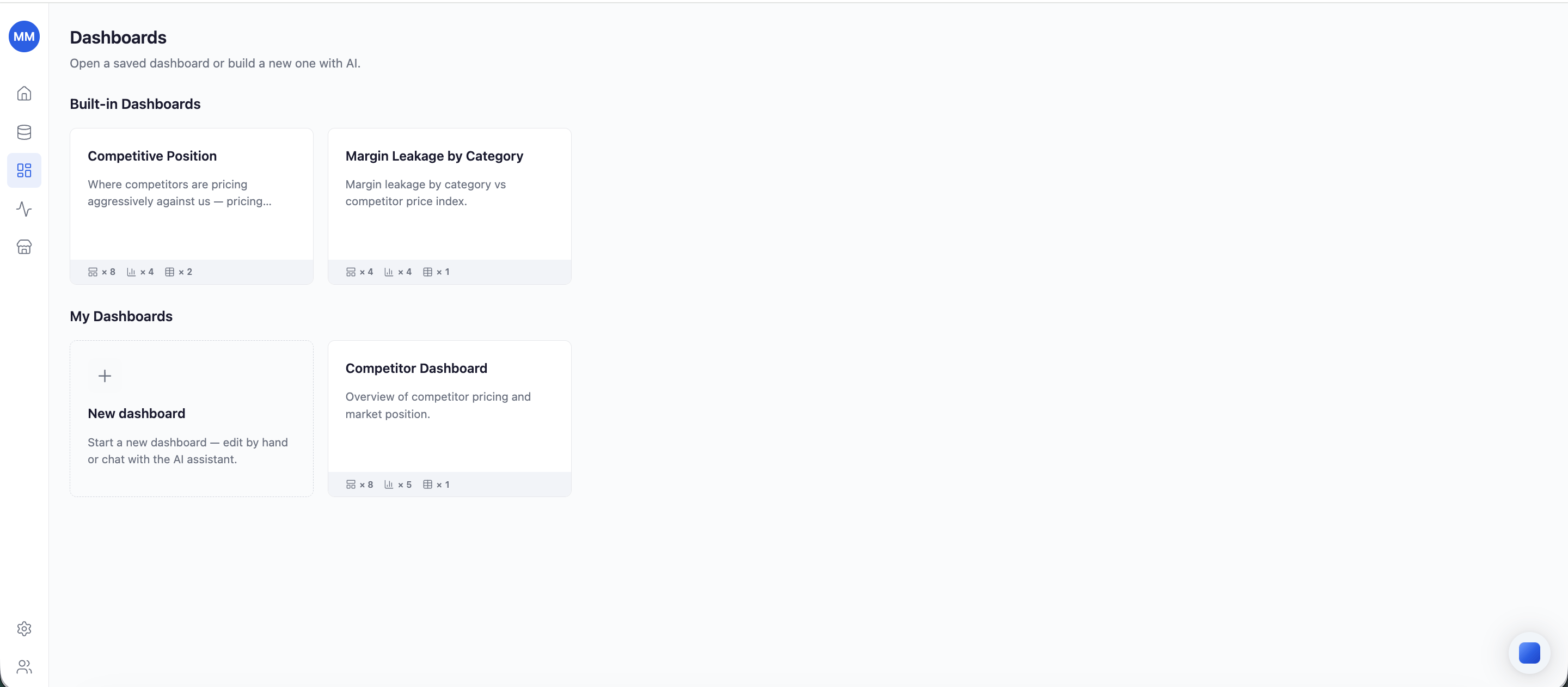
The Dashboards page lists every dashboard in one place - Built-in Dashboards and My Dashboards. From here you can:- Open any dashboard in place. Every chart is interactive - hover for the data point, click a legend entry to isolate it.
- Create a new dashboard from the New dashboard tile - build it by hand or chat with the AI assistant in the dashboard editor.
- Rename or delete a dashboard you created.
Built-in dashboards
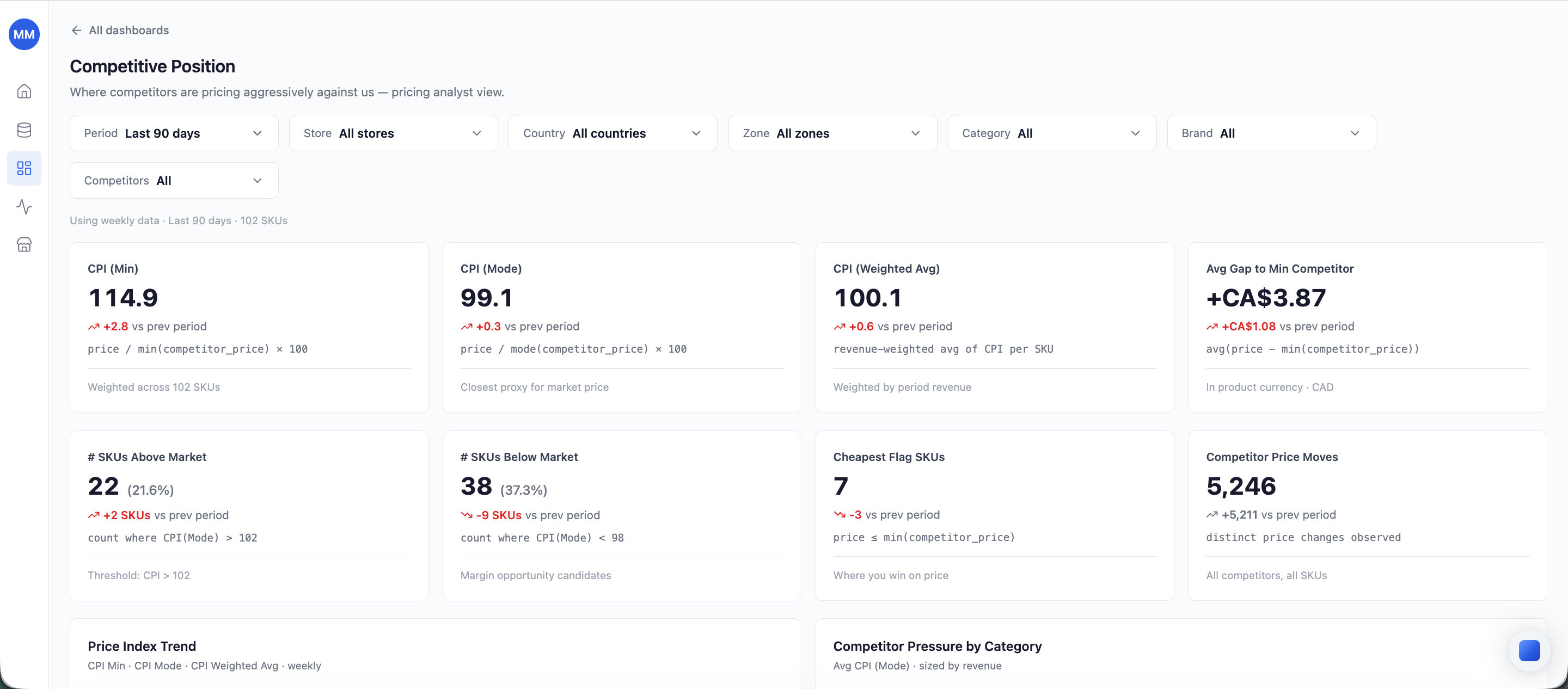
Retailgrid ships analyst-grade dashboards out of the box:- Competitive Position - where competitors are pricing aggressively against you: CPI variants, gap to the cheapest competitor, SKUs above and below market, and competitor price moves, with trend charts below.
- Margin Leakage by Category - margin leakage by category versus competitor price index, so you can focus the next pricing pass on the categories that matter.
Filters
Every dashboard has a global filter bar:- Period - presets from yesterday to all time; every widget follows the selected window.
- Store, Country, Zone, Category, Brand, and Competitors filters narrow the scope - store-level filters become meaningful once store-level data is loaded.
Create with AI
When the built-in dashboards don’t answer your question, describe what you want to see in plain language and Retailgrid generates a dashboard for you. The AI assistant also works on existing dashboards - it can add, remove, or replace widgets from a prompt inside the dashboard editor. Full walkthrough: Create a dashboard with AI.Refresh and freshness
Dashboards read live from your datasets - no manual refresh step. The freshness signal on each dashboard matches the freshness of the underlying datasets:- Datasets refreshed overnight - dashboards reflect last night’s data when you open them in the morning.
- Replaced a dataset manually - the next dashboard load reflects the new data.