
Open a grid
- Go to app.retailgrid.io. You land on Grids.
- Each row is one grid, with its product count, the state of its price approval queue and its recent sales.
- Click the grid name to open it.
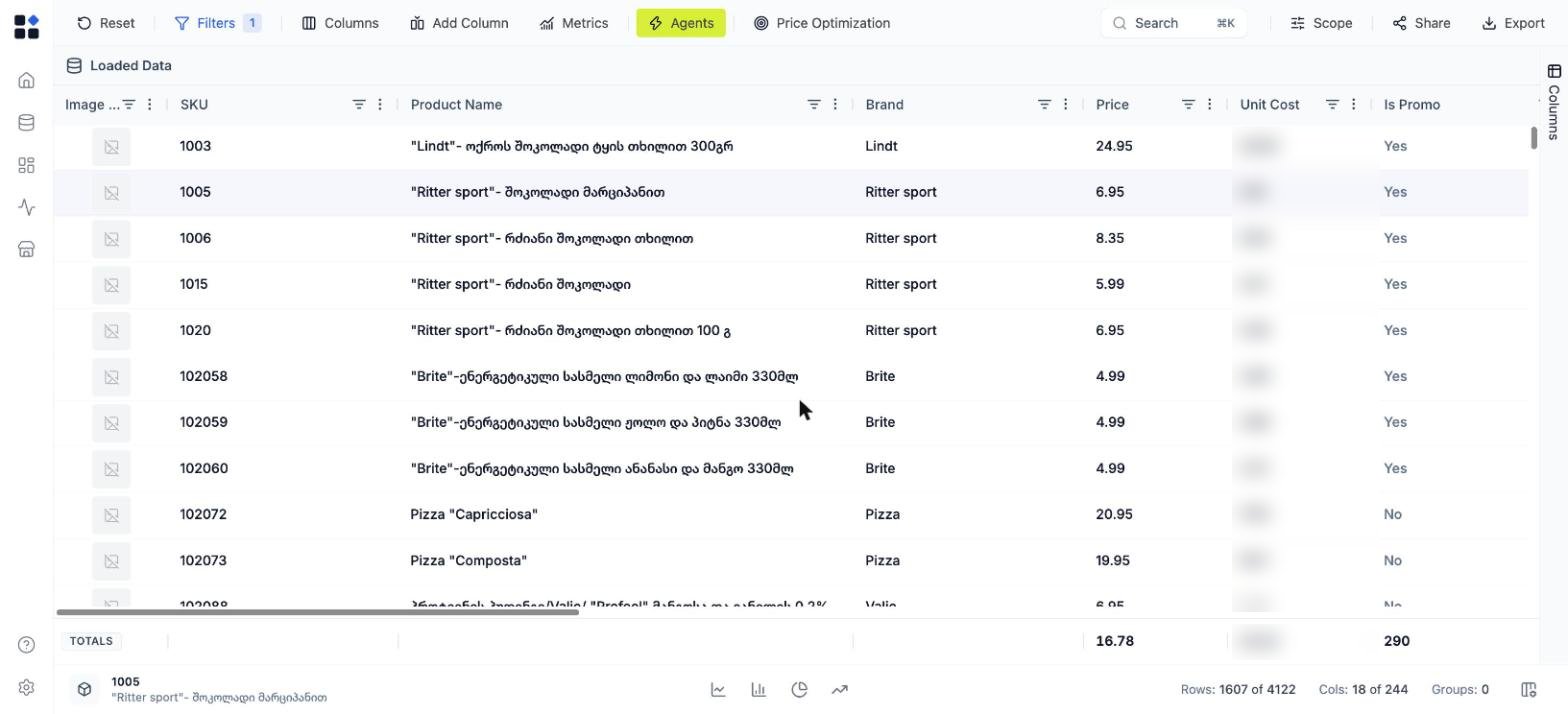
Read the columns
The first columns are your own data: SKU, Product Name, Brand, Price, Unit Cost and your catalog attributes. Scroll right and the columns are grouped by what produced them:- Metrics - values calculated from your data, such as Unit Margin %. See Metrics.
- Market Data - what competitors charge, including Price Range and Competitor CPI (Min). Price monitoring keeps these fresh.
- Product Roles - the role each SKU plays, such as KVI, Traffic, Profit or Niche. See Product roles.
- Price Approval - proposed prices, once an agent has run. You work there in part three.
Check a product in the charts
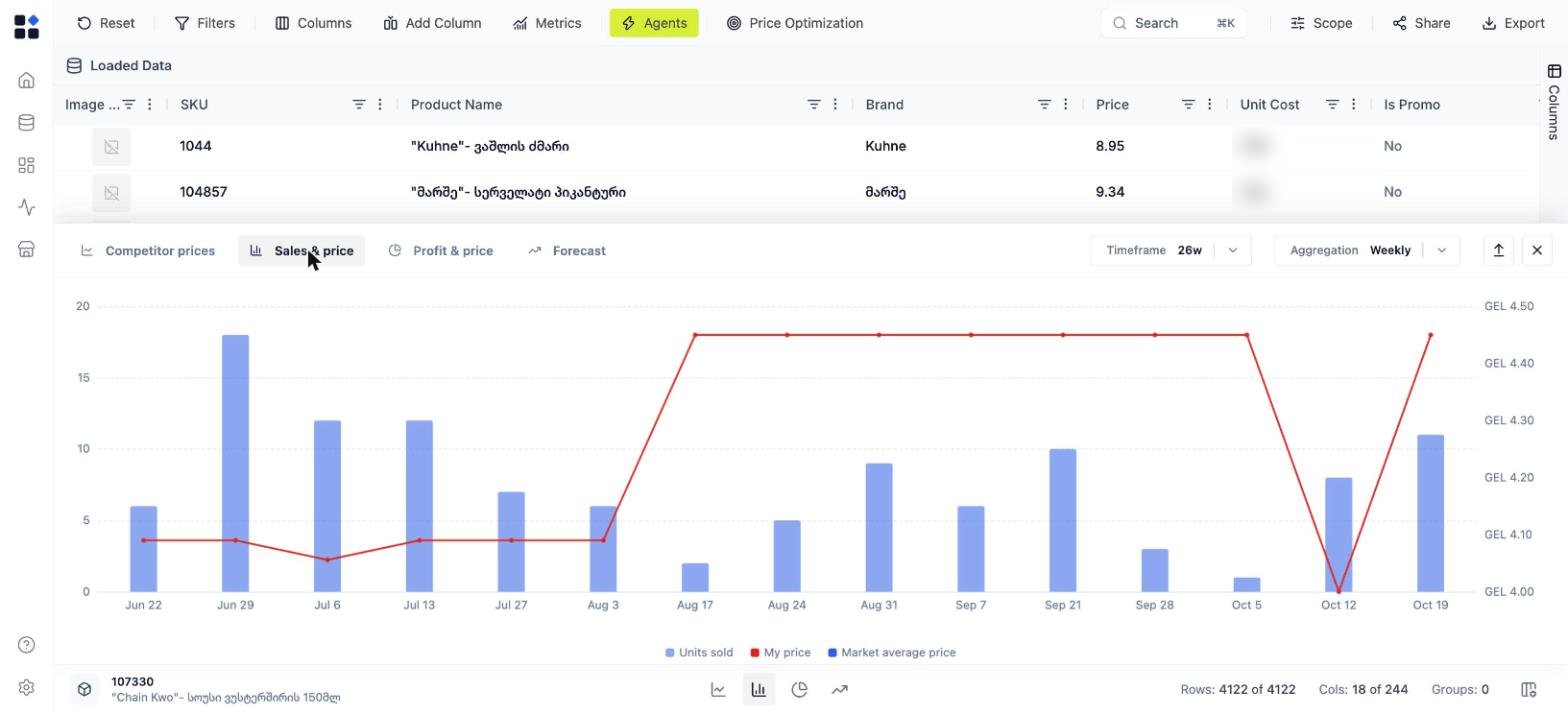
Click a row to select it, then open the analytics panel from the chart icons at the bottom of the grid. Four tabs cover one SKU at a time:- Competitor prices - your price against each competitor over time.
- Sales & price - units sold against your price and the market average. This is where you see how volume responded to past price moves.
- Profit & price - margin and gross profit at those prices.
- Forecast - projected units at the current price.