

Company name
Set the company name that shows up on generated artifacts (Pricing Strategy decks, exports). It lives on your Profile page, under Company Name. The Pricing Strategy agent reads this name for the deck cover and narrative, so set it before running the agent on a freshly provisioned Organization. Your display currency and timezone are also set per person on the Profile page. See Account and Currency.Team members
The Organization is shared across the people you invite. Each teammate has their own Account but works inside the same Organization.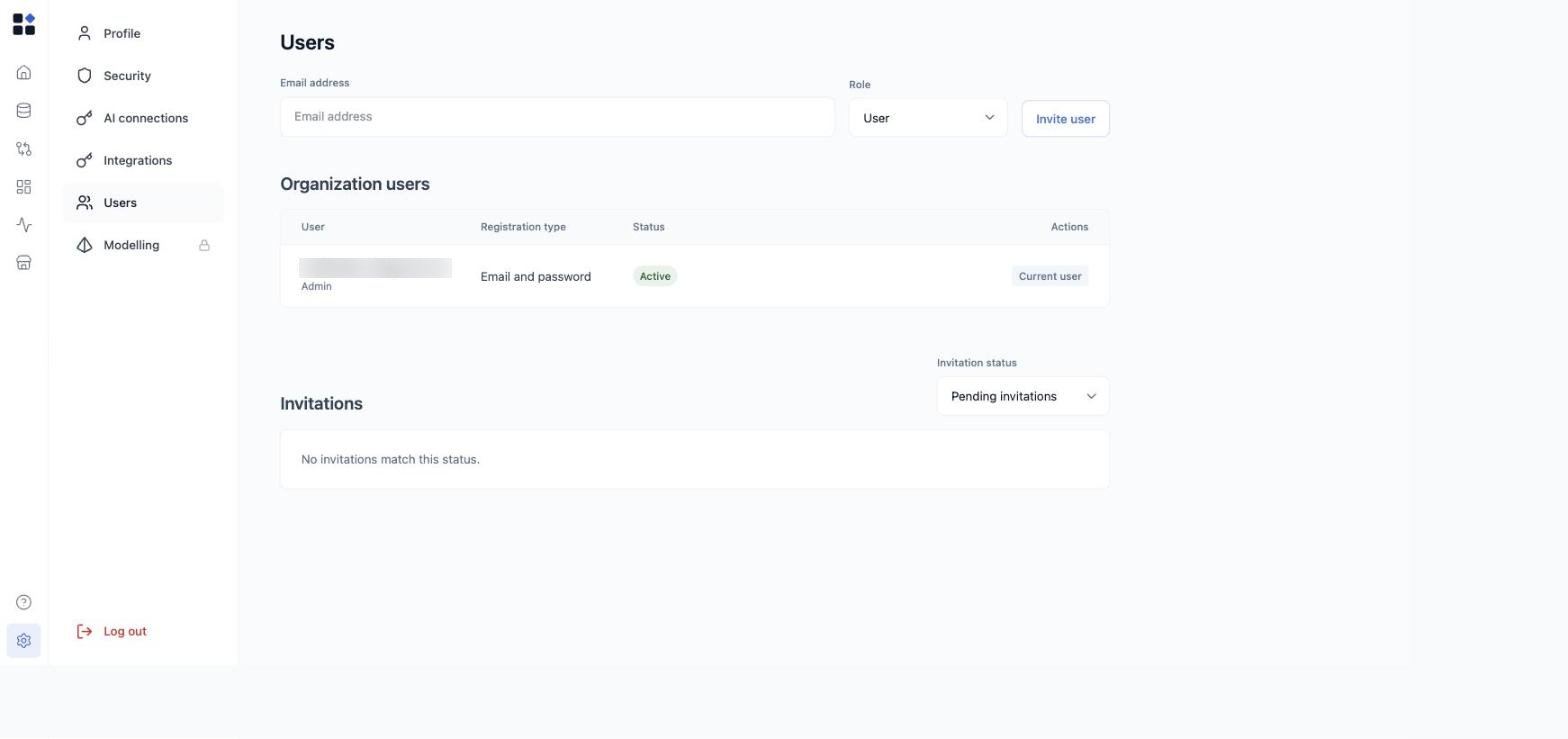
Invite a teammate
- Open Settings → Users.
- Enter the teammate’s Email address in the form at the top of the page.
- Pick a Role (see roles below). It defaults to User.
- Click Invite user.
Roles
Retailgrid has two customer-facing roles inside an Organization:
Most teammates are Users. Keep the Admin role small - typically the founder, the analytics lead, and a backup.
The role also changes what Settings shows. A User sees Profile and Security only. An Admin additionally sees Integrations, Users, and Modelling. The restriction is enforced on the server, so a User cannot reach an Admin-only page by its URL.
Change a teammate’s role
- Find the teammate’s row in the Organization users table.
- Use the role action in the Actions column.
- Pick the new role and confirm.
Remove a teammate
- Find the teammate’s row in the Organization users table.
- Use the remove action in the Actions column.
- Confirm the action.
- Their account loses access to your Organization immediately.
- Their grids, saved views, and dashboards stay in the Organization and remain visible to remaining teammates.
- Their historical runs are preserved with their name attached - the audit trail is intact.