

- Dashboard Builder - direct manipulation: add widgets, arrange the layout, set filters.
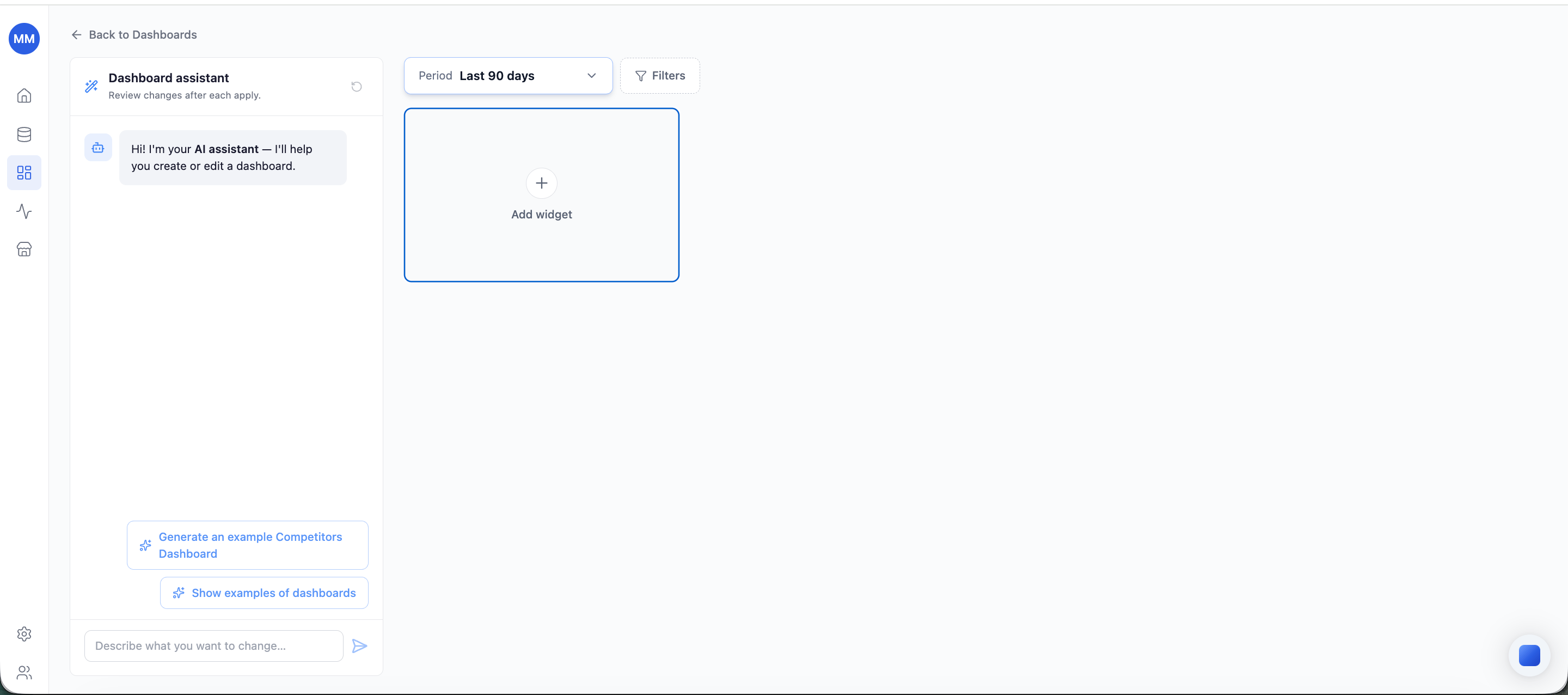
- Dashboard assistant - AI panel on the left: describe a change in plain language and it’s applied to the dashboard. The panel can be hidden when you don’t need it.
Open the editor
From the Dashboards page, create a new dashboard or open an existing one for editing. Built-in dashboards open in the editor too - they’re fully editable (see below).Name and description
Every dashboard has a required name and an optional description. Enter them manually, or let the Dashboard assistant generate and update them to match the dashboard’s content.Add and remove widgets
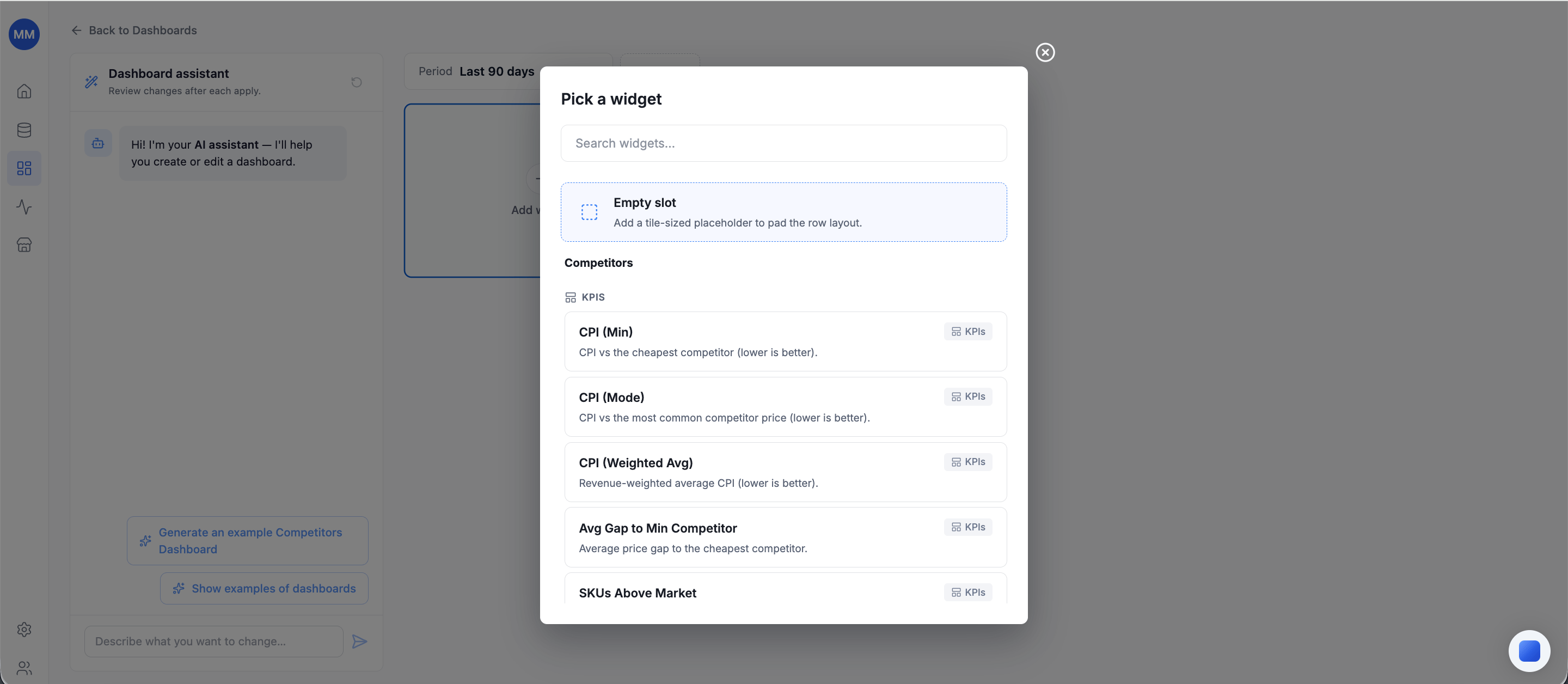
- An Add widget tile is always visible. Click it to open the widget picker - a searchable list of every available widget, each with its title, description, and type (KPIs, chart, table).
- Each widget on a dashboard is unique. Widgets already present are marked as added in the picker and can’t be selected twice.
- Remove a widget via its overflow menu (⋮) → Delete, with a confirmation step.
Filters
The filter bar above the dashboard content applies to every widget:- Period - always present. Presets from yesterday through last 7 / 30 / 90 / 180 days, last year, last 5 years, and all time.
- Filters - attach Store, Country, Zone, Category, Brand, or Competitor filters next to the Period control.
Arrange the layout
The layout is rows of widgets:- Drag & drop to reorder widgets within a row or move them between rows.
- Drop a widget on the bottom drop zone to start a new row.
- Widgets stretch to fill their cell; KPI cards and chart cards keep their natural heights, so the editor works best when similar widget types share a row.
Auto-save
The editor saves automatically as you work - watch for Saved · Just now beneath the dashboard name. There is no separate save step, including for changes made by the assistant.Built-in dashboards: edit and reset
The built-in dashboards are editable like any other - widgets, filters, metadata, layout. Two guarantees keep them safe:- Reset restores the original built-in configuration at any time.
- They can’t be permanently deleted - a removed built-in dashboard is recreated from its default template.