

Before you connect
You need an active Retailgrid account with AI connections enabled for your organization, and an AI client that supports remote MCP connections with OAuth. Your Claude or ChatGPT workspace may also require an administrator to enable custom connections.If AI connections is missing from Settings, contact us to enable it for your organization.
/mcp:
Choose read or write access
New connections normally request read and write access. A client that explicitly requests only
retailgrid:read receives read-only access. Check the permissions on Retailgrid’s consent screen before approving; decline if you do not want to grant the requested access. Where your client supports choosing scopes, request read-only access to start with.
Write authorization and your client’s tool-confirmation prompts are separate. Retailgrid enforces the granted scopes on each call. Your AI client’s settings determine when it asks you to approve an individual action, and it may remember an approval for later calls. Review those settings and the intended Grid, rows, and values before allowing writes.
To upgrade an existing read-only connection, request both scopes and complete a new consent flow. Refreshing the connection does not add write access. If the client does not offer a new authorization flow, disconnect it in Retailgrid and reconnect, then check that the consent screen and connection list show read and write access. A write attempted with read-only access is rejected with an insufficient-scope error.
Connect from Claude
- Open Claude’s Customize → Connectors, then choose Add custom connector from the add menu.
- Name the connector Retailgrid and enter
https://mcp.retailgrid.io/mcpas the remote server URL. - Keep OAuth sign-in enabled. If Claude offers an OAuth client choice, select Register automatically. Leave fixed request headers and manually supplied client credentials empty.
- Finish adding the connector and select Connect if prompted. In the Retailgrid page that opens, sign in with your usual email/password or Google account.
- Review the client name and requested read or read/write permissions, then approve or decline. After approval, check that Claude is listed under Retailgrid Settings → AI connections.
- Enable Retailgrid in the conversation’s connector menu and ask: “Use Retailgrid to list my first 20 Grids.”
Connect from ChatGPT
- Open ChatGPT Plugins on the web. From the plus menu, choose Add custom MCP server. Custom connections must be permitted by your workspace.
- Enter Retailgrid as the name and
https://mcp.retailgrid.io/mcpas the server URL. - Select OAuth authentication. Use automatic client registration (DCR) if ChatGPT offers a registration choice; Retailgrid registers the client for you, so leave manually supplied client credentials empty.
- Review ChatGPT’s connection notice and create the plugin. Complete account authorization when prompted: sign in on the Retailgrid page with your usual email/password or Google account, review the requested permissions, and approve or decline.
- Install the resulting plugin in the personal or workspace area where you created it. Check that ChatGPT appears under Retailgrid Settings → AI connections with the access you approved.
- In a conversation, type @ and select Retailgrid, then ask: “List my first 20 Grids.”
Available tools
The following tools are available on the production endpoint. Read requires read access. Write requires both read and write access, including actions that start a job.Catalog
Grids and scope
Grid columns and data
Pricing recommendations and proposals
These tools read existing recommendations and proposals. Run Price Optimization from the Retailgrid app before asking an assistant to review its results.
Price Approval
Accepting or overriding a proposal does not publish it. Publishing registers all currently accepted prices in the Grid, rather than only the rows in a filtered view. It resets Accepted and Rejected decisions to To Review. Delivery to a store happens through the downstream integration.
Product Roles
Jobs
Work with your data
Start by asking the assistant to list your Grids, discover a Grid’s columns, and read a small page using the returned column keys. An assistant can read UI-accessible stored columns and supported live formula values. Formula sorting and projection are not supported by the proposal-ranking tool. Reads are paged and reflect live data, so values can change between calls. Ask the assistant to follow the returned pagination information and preserve truncation notices. A small page or a limited set of columns is easier to review than an entire catalog. For writes, ask the assistant to preview the scope or selection and show the intended change first. If a column addition has an uncertain outcome, inspect the Grid’s columns and jobs before retrying; repeating an addition can create another column. For operations that use a request ID, reuse that ID when retrying the same action. Use the public API for scheduled extraction or integrations with an ERP or BI tool.Disconnect a client
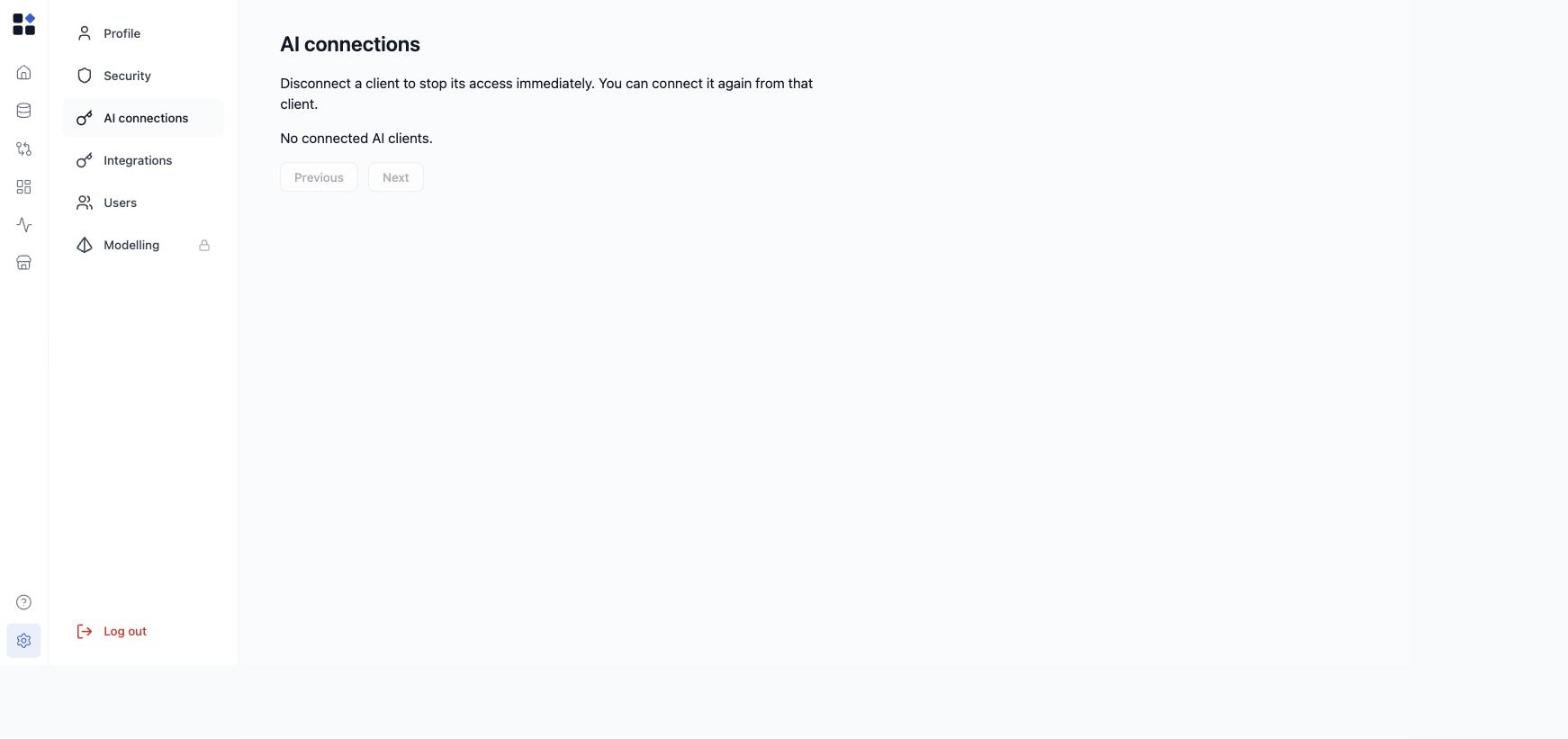
- In Retailgrid, open Settings → AI connections.
- Find the client and select Disconnect.