

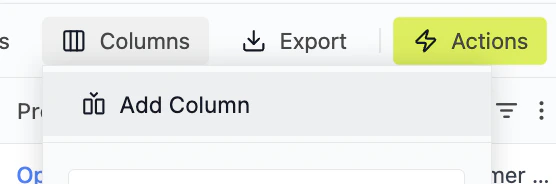
1. How to add a column
Step 1: Open column menu
- Click “Columns” in the top toolbar
- Select “Add Column”
2. Select column type
You will see two options: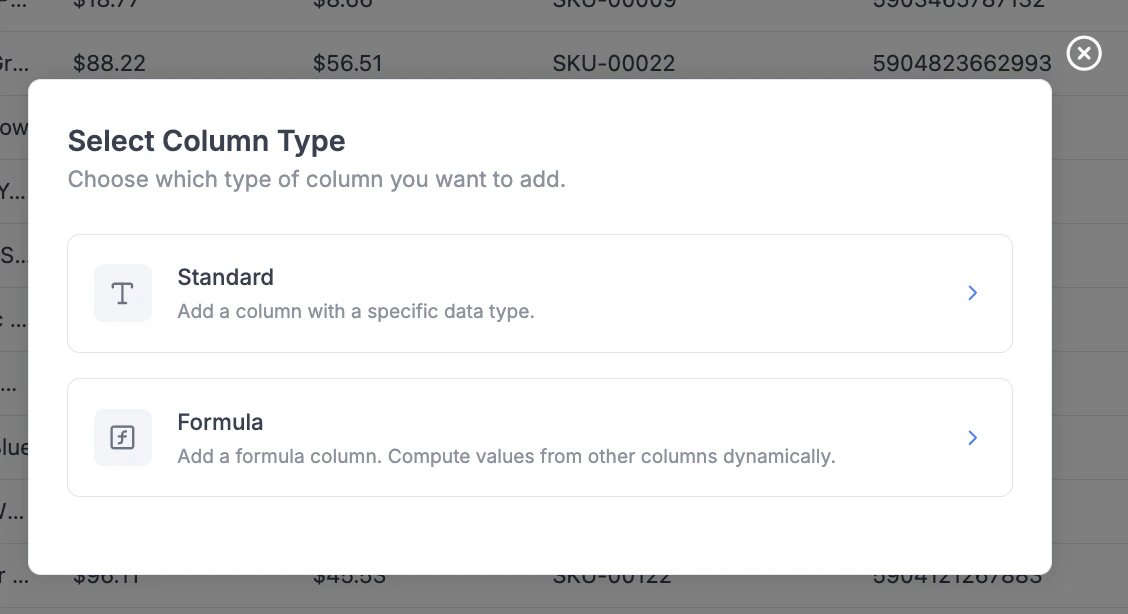
Standard column
- Create a column with a fixed data type
- Used for:
- Notes
- Flags
- Manual inputs
- Tags
Formula column
- Create a column calculated from other columns
- Used for:
- Margin
- Revenue
- Price differences
- KPIs
3. Standard column
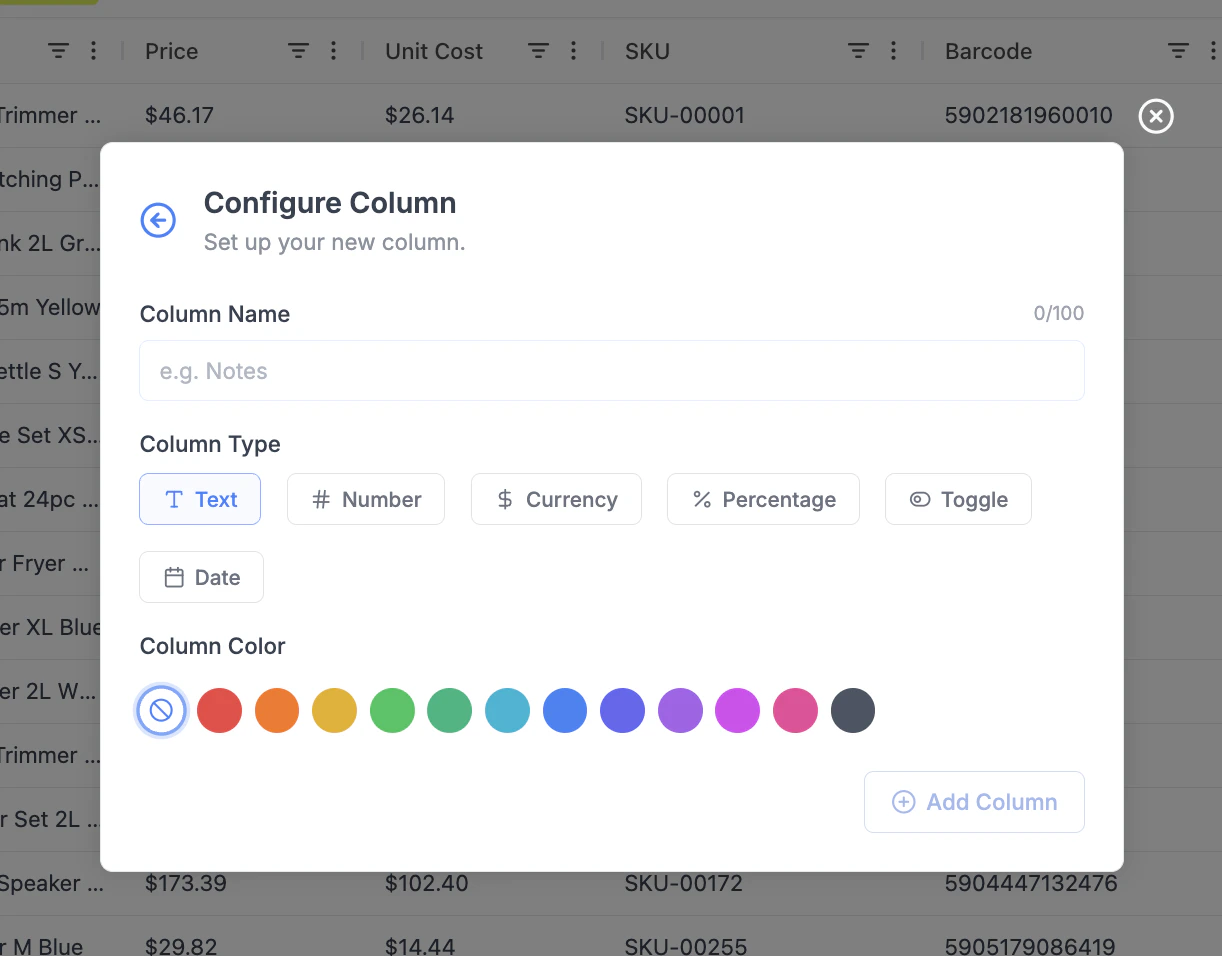
3.1 Column name
- Enter a clear name (e.g.
Margin,Discount %,Notes) - Limit: 100 characters
3.2 Column type / display format
Choose how values should be interpreted:| Type | Use Case |
|---|---|
| Text | Notes, labels |
| Number | Quantities, counts |
| Currency | Prices, revenue |
| Percentage | Margin, discount |
| Date | Events, timestamps |
| Toggle | Yes/No flags |
3.3 Column color (optional)
- Assign a color for quick visual grouping
- Useful for:
- Custom fields
- KPI highlighting
- Workflow states