

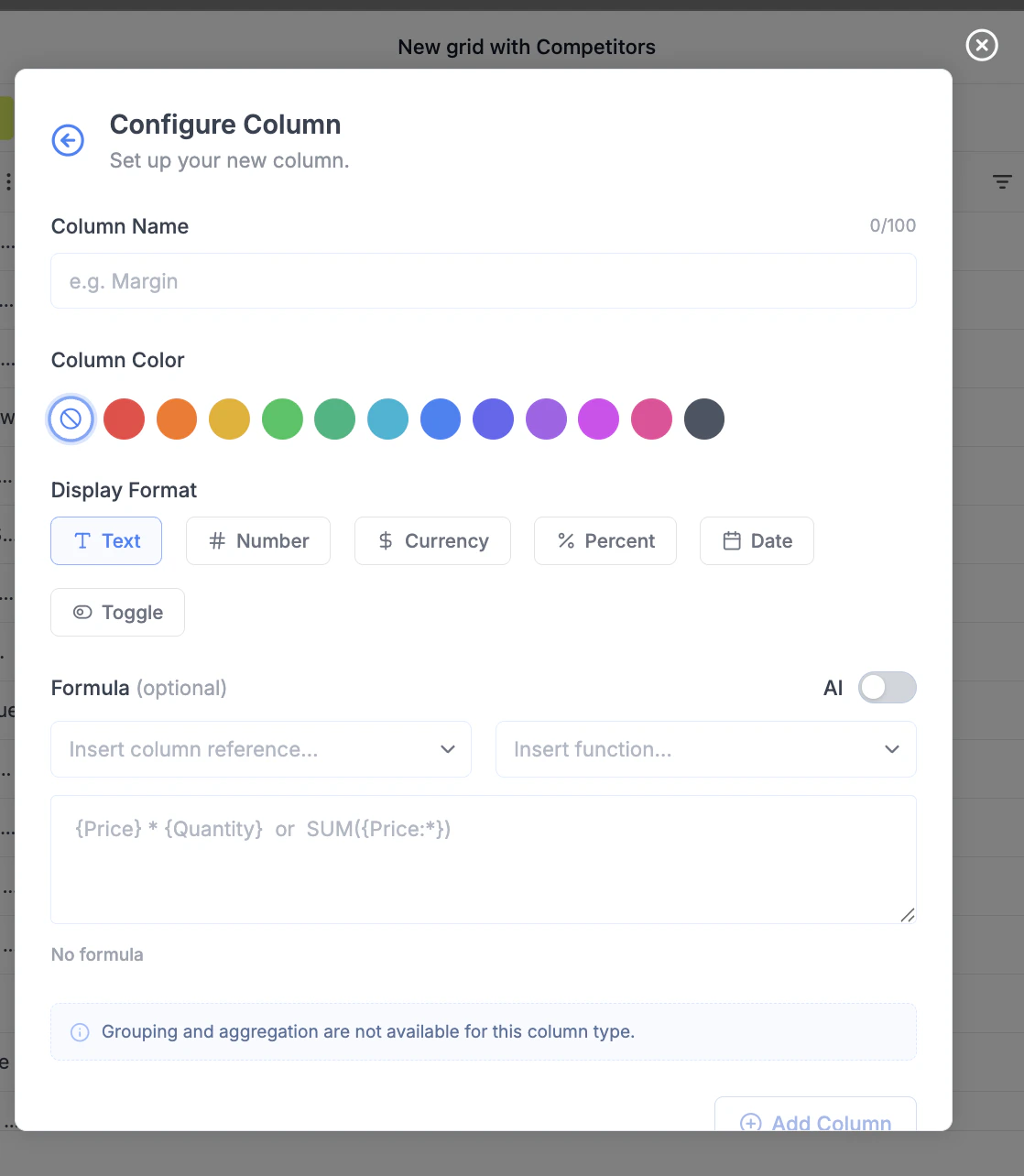
1. What is a formula column?
A Formula Column automatically computes values using:- Other columns (e.g.
{Price},{Unit Cost}) - Functions (e.g.
SUM,IF,ROUND) - Operators (
+,-,*,/)
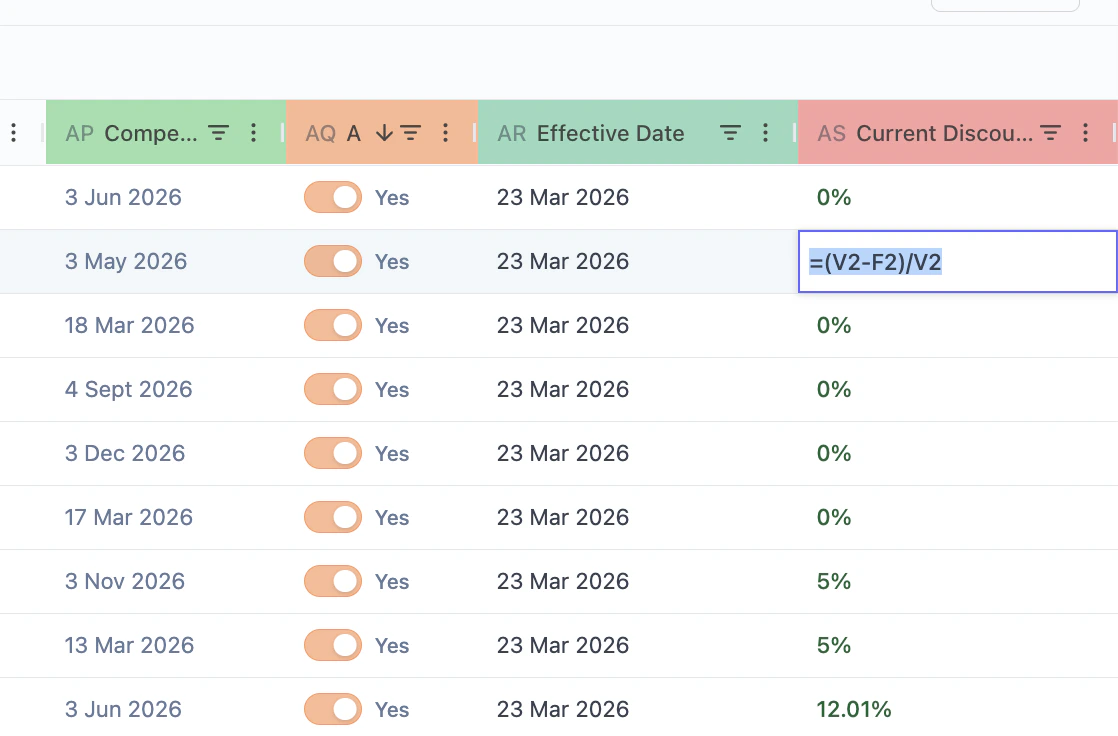
2. How to create a formula column
Step 1: Add column
- Click Columns → Add Column
Step 2: Select type
- Choose Formula
Step 3: Configure column
1. Name
Give a clear business name:Margin %RevenuePrice Index
2. Display format
Choose how results are shown:| Format | Example |
|---|---|
| Number | 123 |
| Currency | €123.45 |
| Percentage | 25% |
| Text | ”High” |
3. Build formula
You have 3 ways:3. Building formulas
3.1 Manual input
Type directly:3.2 Insert column references
- Click “Insert column reference”
- Select fields from the list
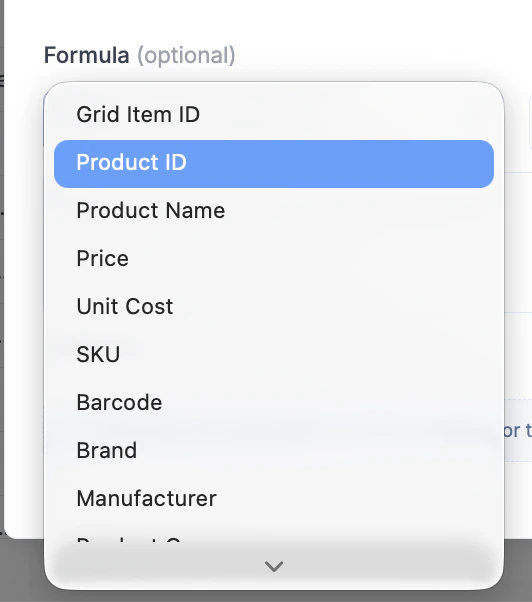
3.3 Insert functions
- Click “Insert function”
- Choose from list\
Math and numeric functions
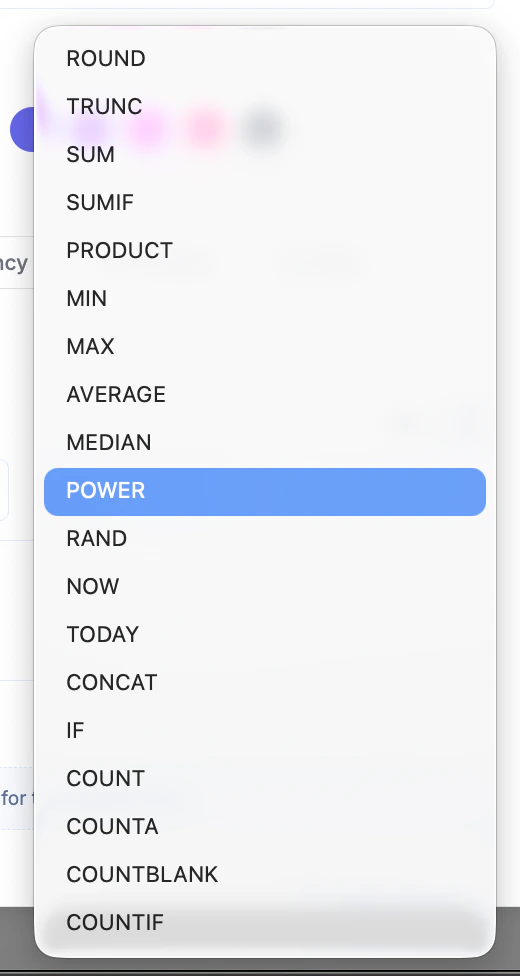
ROUND(value, digits)
Rounds a number to a specified number of decimalsExample:
TRUNC(value, digits)
Truncates a number without roundingExample:
PRODUCT(value1, value2, ...)
Multiplies valuesExample:
POWER(base, exponent)
Raises a number to a powerExample:
RAND()
Generates a random number between 0 and 1Example:
Aggregation functions
SUM(range)
Returns sum of values
SUMIF(range, condition)
Conditional sum
MIN(range)
Returns smallest value
MAX(range)
Returns largest value
AVERAGE(range)
Returns average
MEDIAN(range)
Returns median value
Counting functions
COUNT(range)
Counts numeric values
COUNTA(range)
Counts non-empty values
COUNTBLANK(range)
Counts empty cells
COUNTIF(range, condition)
Counts values matching condition
Logical functions
IF(condition, value_if_true, value_if_false)
Conditional logic
Text functions
CONCAT(value1, value2, ...)
Joins text values
Date and time functions
NOW()
Returns current date & time
TODAY()
Returns current date
Operators (core syntax)
Arithmetic
Comparison
4. Using AI to generate formulas
Step 1: Enable AI
- Toggle AI ON
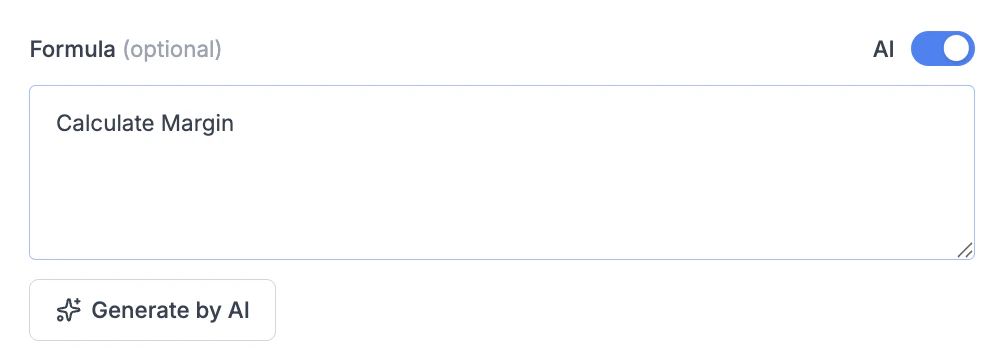
Step 2: Describe logic
Example inputs:- “Margin”
- “Revenue = price times quantity”
- “Discount percent”
Step 3: Generate
- Click Generate by AI
- Create formula
- Validate syntax
5. Validation and feedback
After writing formula:- ✅ Formula is valid → ready to use
- ❌ Errors → fix syntax or references
- Missing
{}around columns - Invalid function usage
- Division by zero (logic issue)
6. Key concepts
6.1 Row-level calculation
Formulas work per row Example:6.2 Column references
Always use{}
Correct:
6.3 Functions
Used for:- Aggregation
- Logic
- Transformation
7. Common use cases
Pricing
Margin %Revenue
RevenueClassification
Price TierPromotions
Discount %8. Best practices
Naming
- Use business terms, not technical ones
- Prefer:
Gross Margin %Net Revenue
Simplicity
- Avoid overly complex formulas
- Break into multiple columns if needed
Reusability
- Build intermediate columns:
MarginRevenue
- Then reuse in other formulas
Performance
- Avoid heavy nested formulas on large datasets
- Prefer simpler expressions
9. Limitations
- Some column types do not support aggregation
- Text fields cannot be used in numeric calculations
- No multi-row/window functions (yet)
10. Recommended workflow
- Ensure base data exists (Price, Cost, etc.)
- Create core metrics:
- Revenue
- Margin
- Add derived insights:
- Classification
- Flags
- Refine with AI or manual tuning
11. Troubleshooting
| Issue | Fix |
|---|---|
| Formula error | Check syntax |
| Empty results | Check null values |
| Wrong numbers | Validate input columns |
| Not updating | Check column references |