

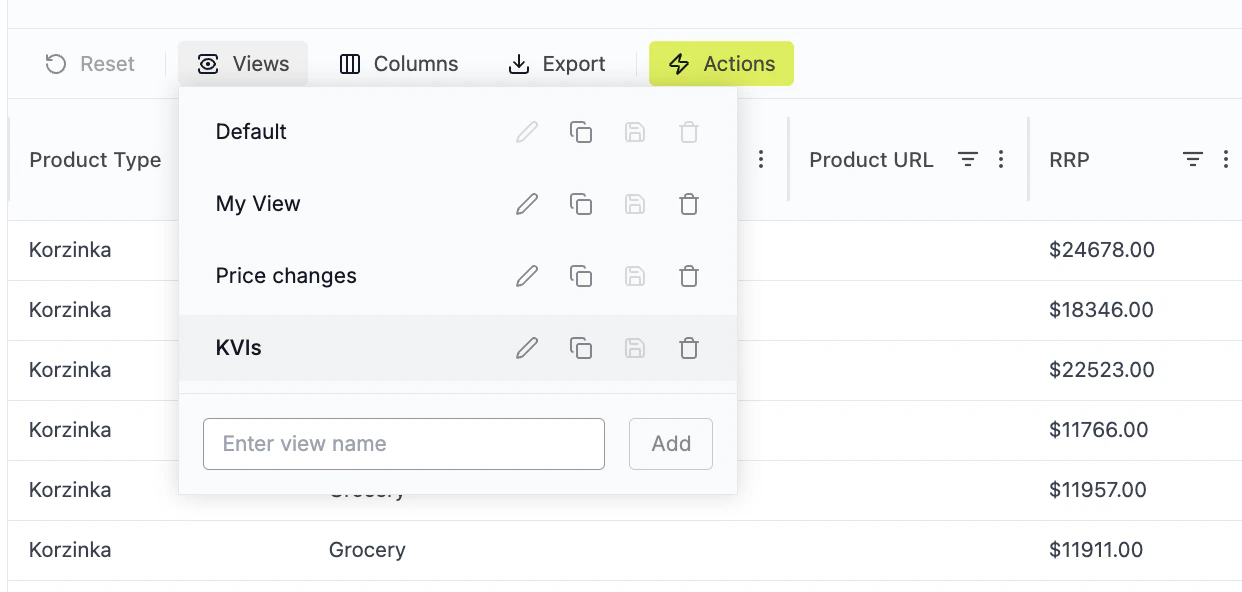
Views in RetailGrid
Views allow you to save and quickly switch between different table layouts in RetailGrid. A view stores how the grid is configured, including:- visible columns
- column order
- filters
- sorting
- grouping
Creating a view
- Configure the grid (columns, filters, sorting).
- Click Views in the toolbar.
- Enter a name for the view.
- Click Add.
Managing views
Inside the Views panel you can:- Rename a view
- Duplicate a view to create variations
- Save changes to the current view
- Delete a view if it is no longer needed
Best practices
- Use clear names like Pricing Analysis, Promo Monitoring, or Margin Control.
- Keep the Default view simple.
- Duplicate views when creating variations for different tasks.
A Pricing Review view might include columns like Price, Competitor Price, Margin %, Sales, and Elasticity to help pricing managers quickly identify opportunities.