> ## Documentation Index
> Fetch the complete documentation index at: https://docs.retailgrid.io/llms.txt
> Use this file to discover all available pages before exploring further.
# Manage stores
> Define and organize the stores, markets, and channels behind store-level pricing - country, currency, sales channel, and pricing zones.
**Stores management** is where you define the stores your store-level pricing runs against. Open **Stores** from the main navigation - four tabs cover the full setup: **Stores**, **Zones**, **Channels**, and **Competitors**.
A store in Retailgrid is a **location dimension**, not just a physical shop. A store can represent:
* A physical store
* A country or market
* A warehouse
* An online shop or marketplace (Amazon, Zalando, etc.)
* A B2B vs B2C channel
If prices, costs, tax rates, or stock differ across any of these, model them as separate stores and load a [Product store data](/data-requirements/product-store-data) dataset.
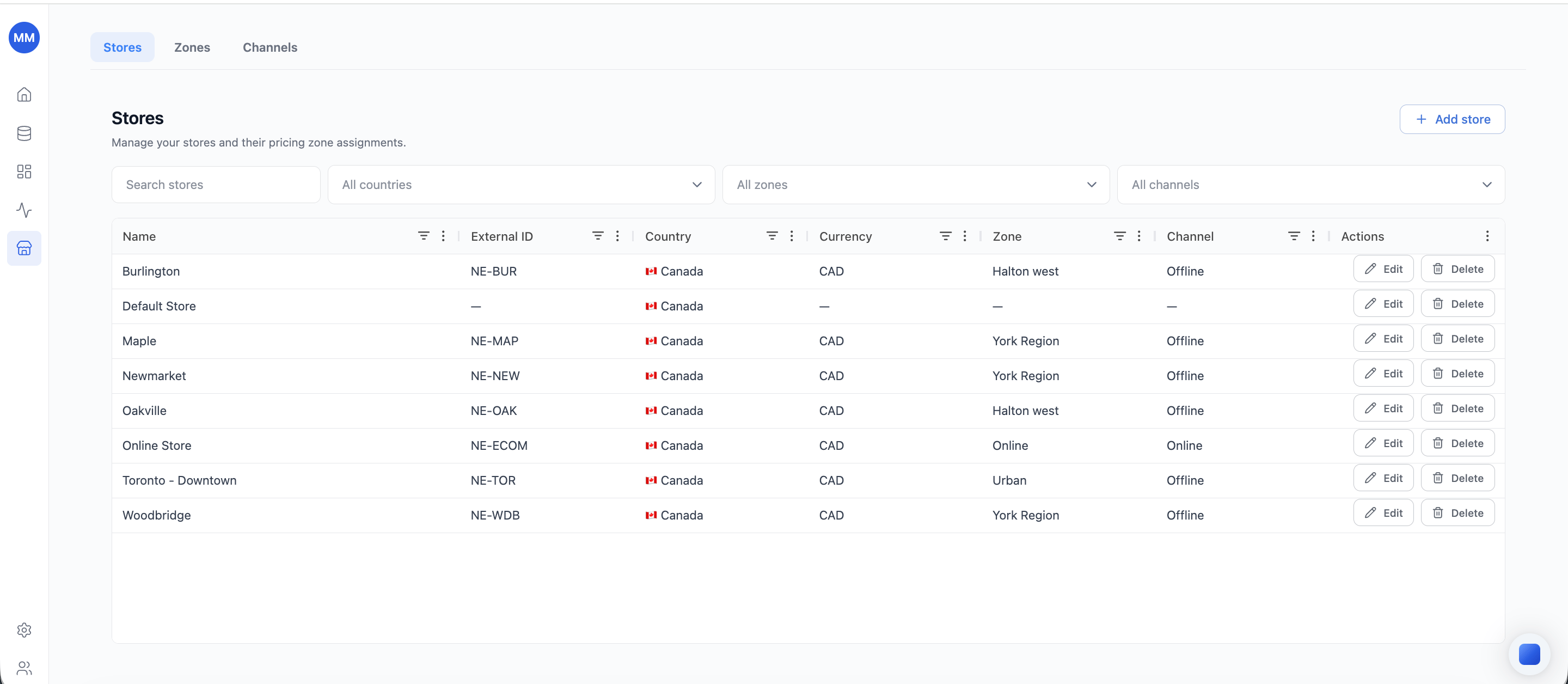 ## Create a store
1. Open **Stores** from the main navigation.
2. Click **Add store**.
3. Fill in the store's attributes:
* **Name** - must be unique. Use consistent, readable names.
* **External ID** - the identifier your data uses for this store (e.g. `NE-TOR`). `storeId` values in your data loads match against this.
* **Country** - drives tax and market context.
* **Currency** - the currency this store prices in. Must be a valid currency code.
* **Zone** - the pricing zone this store belongs to (see below).
* **Channel** - the sales channel (e.g. Online, Offline, B2B).
4. Save. The store appears in the list with its key attributes.
Retailgrid validates name and currency on save, and rejects a duplicate name or an invalid currency with a specific error.
## Edit a store
Use **Edit** on any row to change a store's attributes. Changes persist immediately and are reflected everywhere the store is used - the [SKU-Store grid view](/grids/sku-store-view), rule targeting in [Dynamic Pricing](/agents/dynamic-pricing), and store-level [metrics](/reference/metrics).
## Pricing zones
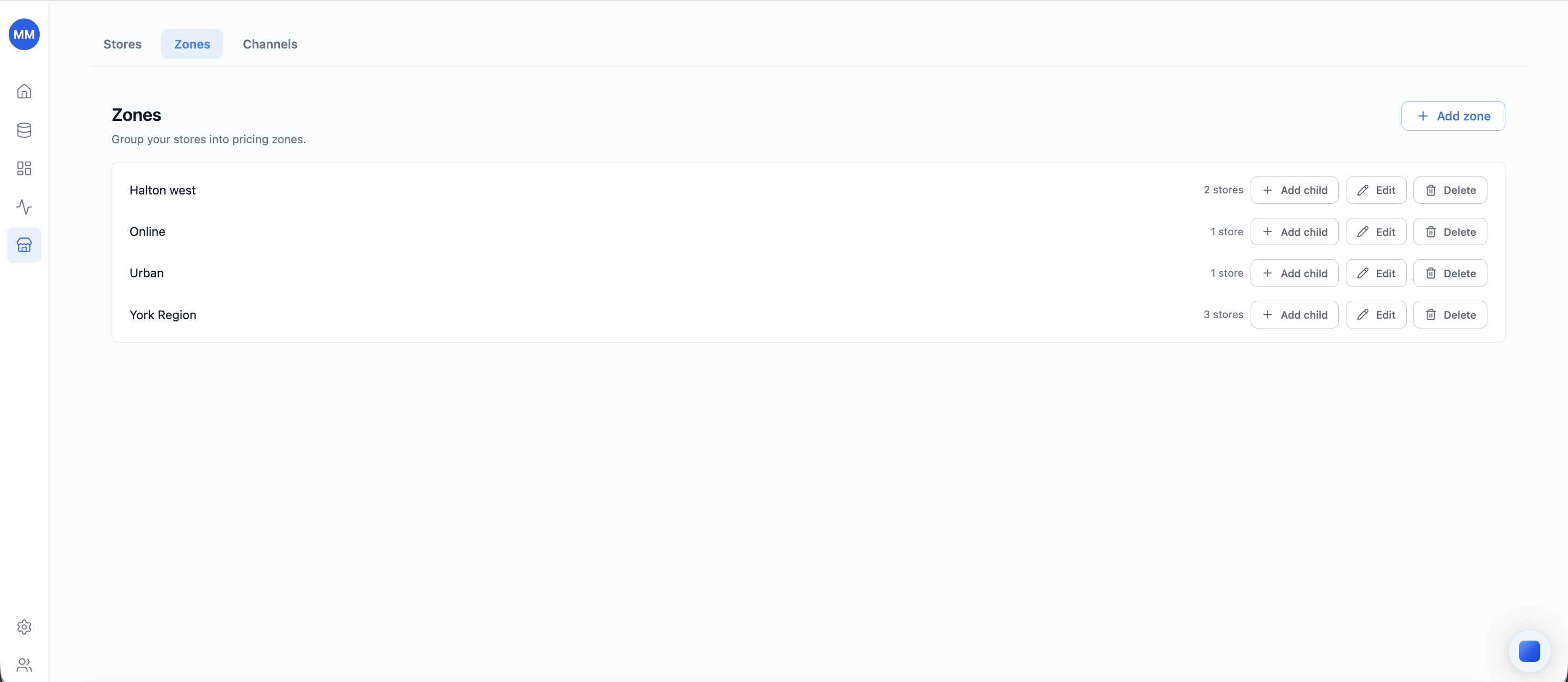
A **pricing zone** is a group of stores that share pricing logic - for example, all eurozone stores, or all urban locations.
* Define zones on the **Zones** tab and assign stores to them.
* In [Dynamic Pricing](/agents/dynamic-pricing), a rule can target a pricing zone, so one margin floor or parity rule covers every store in the zone without repeating the rule per store.
Zones keep rule sets small when you operate many stores with a handful of distinct pricing policies.
## Create a store
1. Open **Stores** from the main navigation.
2. Click **Add store**.
3. Fill in the store's attributes:
* **Name** - must be unique. Use consistent, readable names.
* **External ID** - the identifier your data uses for this store (e.g. `NE-TOR`). `storeId` values in your data loads match against this.
* **Country** - drives tax and market context.
* **Currency** - the currency this store prices in. Must be a valid currency code.
* **Zone** - the pricing zone this store belongs to (see below).
* **Channel** - the sales channel (e.g. Online, Offline, B2B).
4. Save. The store appears in the list with its key attributes.
Retailgrid validates name and currency on save, and rejects a duplicate name or an invalid currency with a specific error.
## Edit a store
Use **Edit** on any row to change a store's attributes. Changes persist immediately and are reflected everywhere the store is used - the [SKU-Store grid view](/grids/sku-store-view), rule targeting in [Dynamic Pricing](/agents/dynamic-pricing), and store-level [metrics](/reference/metrics).
## Pricing zones
A **pricing zone** is a group of stores that share pricing logic - for example, all eurozone stores, or all urban locations.
* Define zones on the **Zones** tab and assign stores to them.
* In [Dynamic Pricing](/agents/dynamic-pricing), a rule can target a pricing zone, so one margin floor or parity rule covers every store in the zone without repeating the rule per store.
Zones keep rule sets small when you operate many stores with a handful of distinct pricing policies.
 ## Channels
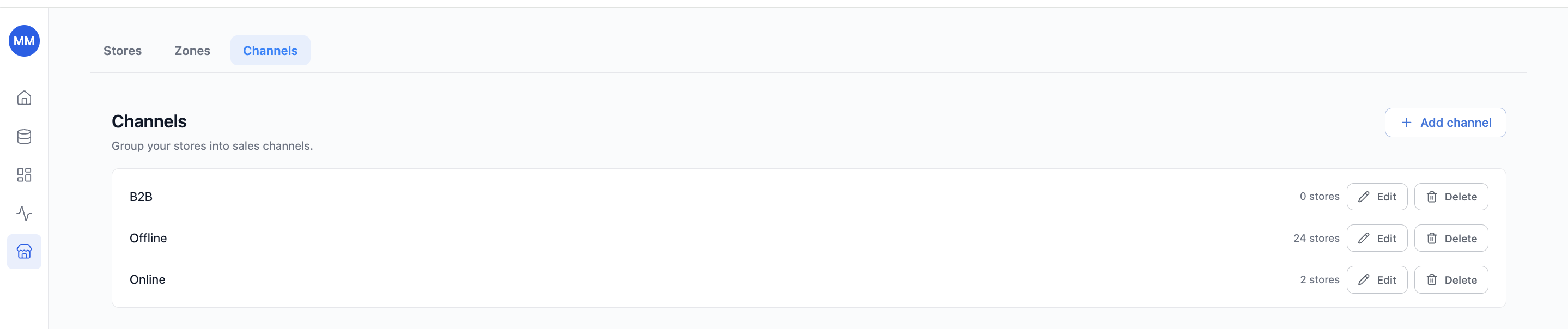
The **Channels** tab groups your stores into sales channels - Online, Offline, B2B, marketplace, and so on. Like zones, channels are a targeting dimension: filter the grid by channel, or scope a Dynamic Pricing rule to just your online stores.
## Channels
The **Channels** tab groups your stores into sales channels - Online, Offline, B2B, marketplace, and so on. Like zones, channels are a targeting dimension: filter the grid by channel, or scope a Dynamic Pricing rule to just your online stores.
 ## Competitors
The **Competitors** tab is where you scope which competitors apply to which stores, zones, and channels. Search your loaded competitors and assign each one to the locations where it actually competes, so pricing rules and competitor-gap metrics compare against the right set per location. See [Assign competitors to stores, zones, and channels](/stores/assign-competitors) for the full workflow.
## Competitors
The **Competitors** tab is where you scope which competitors apply to which stores, zones, and channels. Search your loaded competitors and assign each one to the locations where it actually competes, so pricing rules and competitor-gap metrics compare against the right set per location. See [Assign competitors to stores, zones, and channels](/stores/assign-competitors) for the full workflow.
 ## Find stores
The store list is searchable and filterable by **country**, **zone**, and **channel** - useful once the list grows past a screenful.
## How store configuration is used
Everything defined here feeds the rest of the app:
* **Data loading** - `storeId` values in your [Product store data](/data-requirements/product-store-data) uploads (CSV or API) must match a store defined here.
* **Grid** - the [SKU-Store view](/grids/sku-store-view) shows one row per product-store combination, with the store's country, currency, channel, and pricing zone as columns.
* **Pricing rules** - [Dynamic Pricing](/agents/dynamic-pricing) emits one recommended price per product-store combination and can scope rules by store attributes.
* **Competitors** - assign competitors to stores, zones, or channels so each location's pricing rules and gap metrics use the right competitor set. See [Assign competitors to stores, zones, and channels](/stores/assign-competitors).
* **Metrics** - margin, price index, and competitor-gap metrics compute per store, using each store's own price, cost, and competitor set.
## Related
* [Product store data](/data-requirements/product-store-data)
* [Product and SKU-Store grid views](/grids/sku-store-view)
* [Assign competitors to stores, zones, and channels](/stores/assign-competitors)
* [Dynamic Pricing](/agents/dynamic-pricing)
* [Metrics glossary](/reference/metrics)
## Find stores
The store list is searchable and filterable by **country**, **zone**, and **channel** - useful once the list grows past a screenful.
## How store configuration is used
Everything defined here feeds the rest of the app:
* **Data loading** - `storeId` values in your [Product store data](/data-requirements/product-store-data) uploads (CSV or API) must match a store defined here.
* **Grid** - the [SKU-Store view](/grids/sku-store-view) shows one row per product-store combination, with the store's country, currency, channel, and pricing zone as columns.
* **Pricing rules** - [Dynamic Pricing](/agents/dynamic-pricing) emits one recommended price per product-store combination and can scope rules by store attributes.
* **Competitors** - assign competitors to stores, zones, or channels so each location's pricing rules and gap metrics use the right competitor set. See [Assign competitors to stores, zones, and channels](/stores/assign-competitors).
* **Metrics** - margin, price index, and competitor-gap metrics compute per store, using each store's own price, cost, and competitor set.
## Related
* [Product store data](/data-requirements/product-store-data)
* [Product and SKU-Store grid views](/grids/sku-store-view)
* [Assign competitors to stores, zones, and channels](/stores/assign-competitors)
* [Dynamic Pricing](/agents/dynamic-pricing)
* [Metrics glossary](/reference/metrics)