> ## Documentation Index
> Fetch the complete documentation index at: https://docs.retailgrid.io/llms.txt
> Use this file to discover all available pages before exploring further.
# Modelling
> Account-level demand model parameters that Price Optimization and every scheduled recalculation read - admin only.
**Modelling** holds the parameters behind your account's demand model. [Price Optimization](/agents/price-optimization) and every scheduled recalculation read these values. They are not set per run.
Open it from **Settings** in the left sidebar, then **Modelling**. The tab is marked **Admin only** and is visible to Admins.
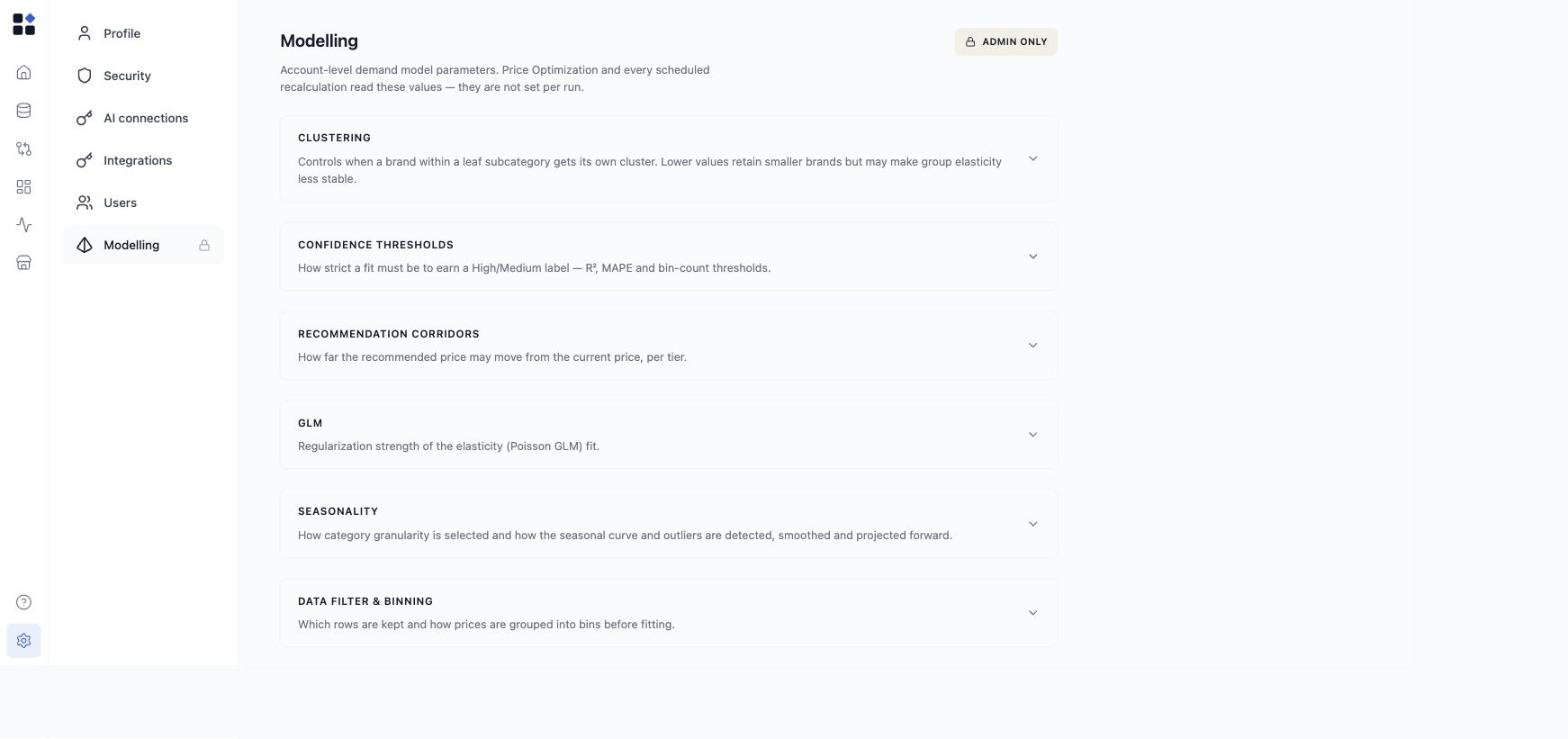 These parameters belong to the account, not to one optimization run. Change them once and every future run and recalculation picks them up. If you are looking for the per-run settings (optimization goal, scope, input columns), those live in the [Price Optimization](/agents/price-optimization) agent dialog.
## Who can change them
Only Admins. The permission is enforced on the server, not just by hiding the tab, so a **User** cannot reach these values by any route. See [roles](/settings/organization#roles).
Keep the list of Admins short. A change here moves every price recommendation the account produces from that point on.
## The parameter groups
Each group is collapsed by default. Expand the one you need.
| Group | What it controls |
| :--------------------------- | :------------------------------------------------------------------------------------------------------------------------------------------------ |
| **Clustering** | When a brand inside a leaf subcategory gets its own cluster. Lower values keep smaller brands separate but can make group elasticity less stable. |
| **Confidence thresholds** | How strict a fit has to be to earn a High or Medium confidence label, expressed as R2, MAPE, and bin-count thresholds. |
| **Recommendation corridors** | How far a recommended price may move from the current price, per confidence tier. |
| **GLM** | Regularization strength of the elasticity fit. |
| **Seasonality** | How category granularity is chosen, and how the seasonal curve and outliers are detected, smoothed, and projected forward. |
| **Data filter and binning** | Which rows are kept, and how prices are grouped into bins before fitting. |
| **Model freshness** | How and when the model rebuilds itself. |
The defaults are deliberately conservative. Change one group at a time and watch what it does to confidence coverage and recommendation size before you move the next one.
## Model freshness
This group keeps the model current independently of Price Optimization, so a run never waits on a stale model.
* **Refresh trigger** - rebuild on a **schedule**, or **when relevant data updates**.
* **Frequency** - **Weekly** or **Daily**, when the trigger is scheduled.
* **Time (UTC)** - when the scheduled rebuild starts.
The panel shows the timestamp of the last successful model calculation and whether it was automatic or manual, so you can tell at a glance how fresh the model behind your recommendations is.
### Rebuild the model now
**Recalculate now** starts a rebuild immediately, using your saved tuning values. If a rebuild is already running, the request joins that one instead of queueing a second.
A manual rebuild needs at least one grid to build from. On a freshly provisioned account, create a grid first.
Use it after a meaningful change here, or after loading a large batch of new sales history, when you do not want to wait for the next scheduled run.
## What a change affects
Saved values apply to the **next** Price Optimization run and to every scheduled recalculation. Prices you have already approved are not affected, and nothing about your live prices changes when you save.
So a change here is safe to make and easy to reason about: it changes future recommendations only.
## Common pitfalls
* **Loosening confidence thresholds to get more recommendations.** It works, but the extra recommendations are the ones the model is least sure about. Widen the corridors before you lower the bar.
* **Changing several groups at once.** You lose the ability to attribute the change in output to any one of them.
* **Expecting an immediate effect on the grid.** Saving does not re-price anything. Run Price Optimization again, or trigger a recalculation.
## Related
* [Price Optimization](/agents/price-optimization)
* [Organization](/settings/organization)
* [Sales forecast and price impact](/agents/sales-forecast)
* [Runs](/runs/overview)
These parameters belong to the account, not to one optimization run. Change them once and every future run and recalculation picks them up. If you are looking for the per-run settings (optimization goal, scope, input columns), those live in the [Price Optimization](/agents/price-optimization) agent dialog.
## Who can change them
Only Admins. The permission is enforced on the server, not just by hiding the tab, so a **User** cannot reach these values by any route. See [roles](/settings/organization#roles).
Keep the list of Admins short. A change here moves every price recommendation the account produces from that point on.
## The parameter groups
Each group is collapsed by default. Expand the one you need.
| Group | What it controls |
| :--------------------------- | :------------------------------------------------------------------------------------------------------------------------------------------------ |
| **Clustering** | When a brand inside a leaf subcategory gets its own cluster. Lower values keep smaller brands separate but can make group elasticity less stable. |
| **Confidence thresholds** | How strict a fit has to be to earn a High or Medium confidence label, expressed as R2, MAPE, and bin-count thresholds. |
| **Recommendation corridors** | How far a recommended price may move from the current price, per confidence tier. |
| **GLM** | Regularization strength of the elasticity fit. |
| **Seasonality** | How category granularity is chosen, and how the seasonal curve and outliers are detected, smoothed, and projected forward. |
| **Data filter and binning** | Which rows are kept, and how prices are grouped into bins before fitting. |
| **Model freshness** | How and when the model rebuilds itself. |
The defaults are deliberately conservative. Change one group at a time and watch what it does to confidence coverage and recommendation size before you move the next one.
## Model freshness
This group keeps the model current independently of Price Optimization, so a run never waits on a stale model.
* **Refresh trigger** - rebuild on a **schedule**, or **when relevant data updates**.
* **Frequency** - **Weekly** or **Daily**, when the trigger is scheduled.
* **Time (UTC)** - when the scheduled rebuild starts.
The panel shows the timestamp of the last successful model calculation and whether it was automatic or manual, so you can tell at a glance how fresh the model behind your recommendations is.
### Rebuild the model now
**Recalculate now** starts a rebuild immediately, using your saved tuning values. If a rebuild is already running, the request joins that one instead of queueing a second.
A manual rebuild needs at least one grid to build from. On a freshly provisioned account, create a grid first.
Use it after a meaningful change here, or after loading a large batch of new sales history, when you do not want to wait for the next scheduled run.
## What a change affects
Saved values apply to the **next** Price Optimization run and to every scheduled recalculation. Prices you have already approved are not affected, and nothing about your live prices changes when you save.
So a change here is safe to make and easy to reason about: it changes future recommendations only.
## Common pitfalls
* **Loosening confidence thresholds to get more recommendations.** It works, but the extra recommendations are the ones the model is least sure about. Widen the corridors before you lower the bar.
* **Changing several groups at once.** You lose the ability to attribute the change in output to any one of them.
* **Expecting an immediate effect on the grid.** Saving does not re-price anything. Run Price Optimization again, or trigger a recalculation.
## Related
* [Price Optimization](/agents/price-optimization)
* [Organization](/settings/organization)
* [Sales forecast and price impact](/agents/sales-forecast)
* [Runs](/runs/overview)