> ## Documentation Index
> Fetch the complete documentation index at: https://docs.retailgrid.io/llms.txt
> Use this file to discover all available pages before exploring further.
# Formula columns
> Create calculated columns using formulas, functions, and AI to compute margins, revenue, and other pricing metrics.
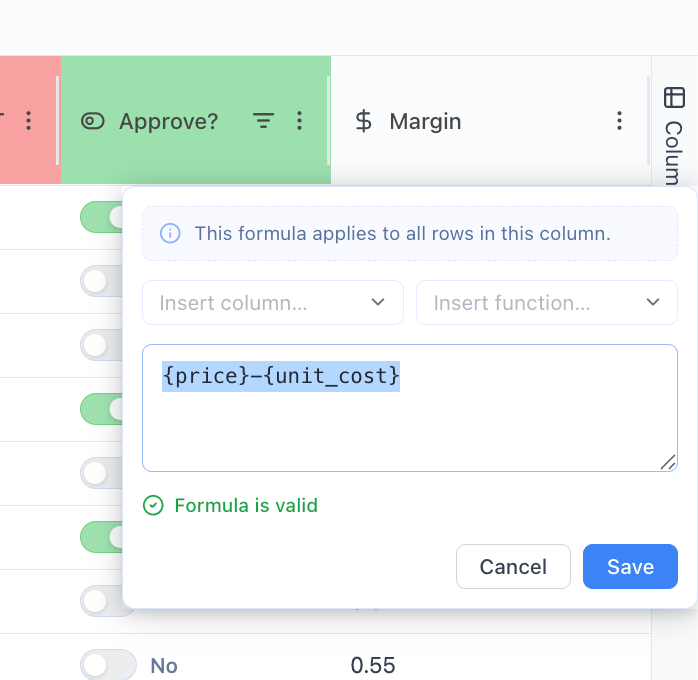
Formula Columns allow you to **calculate values dynamically** based on other columns. They are essential for pricing, analytics, and decision-making workflows.
 ## 1. What is a formula column?
A **Formula Column** automatically computes values using:
* Other columns (e.g. `{Price}`, `{Unit Cost}`)
* Functions (e.g. `SUM`, `IF`, `ROUND`)
* Operators (`+`, `-`, `*`, `/`)
Unlike standard columns, values are not manually entered - they are always calculated.
## 1. What is a formula column?
A **Formula Column** automatically computes values using:
* Other columns (e.g. `{Price}`, `{Unit Cost}`)
* Functions (e.g. `SUM`, `IF`, `ROUND`)
* Operators (`+`, `-`, `*`, `/`)
Unlike standard columns, values are not manually entered - they are always calculated.
 ## 2. How to create a formula column
### Step 1: Add column
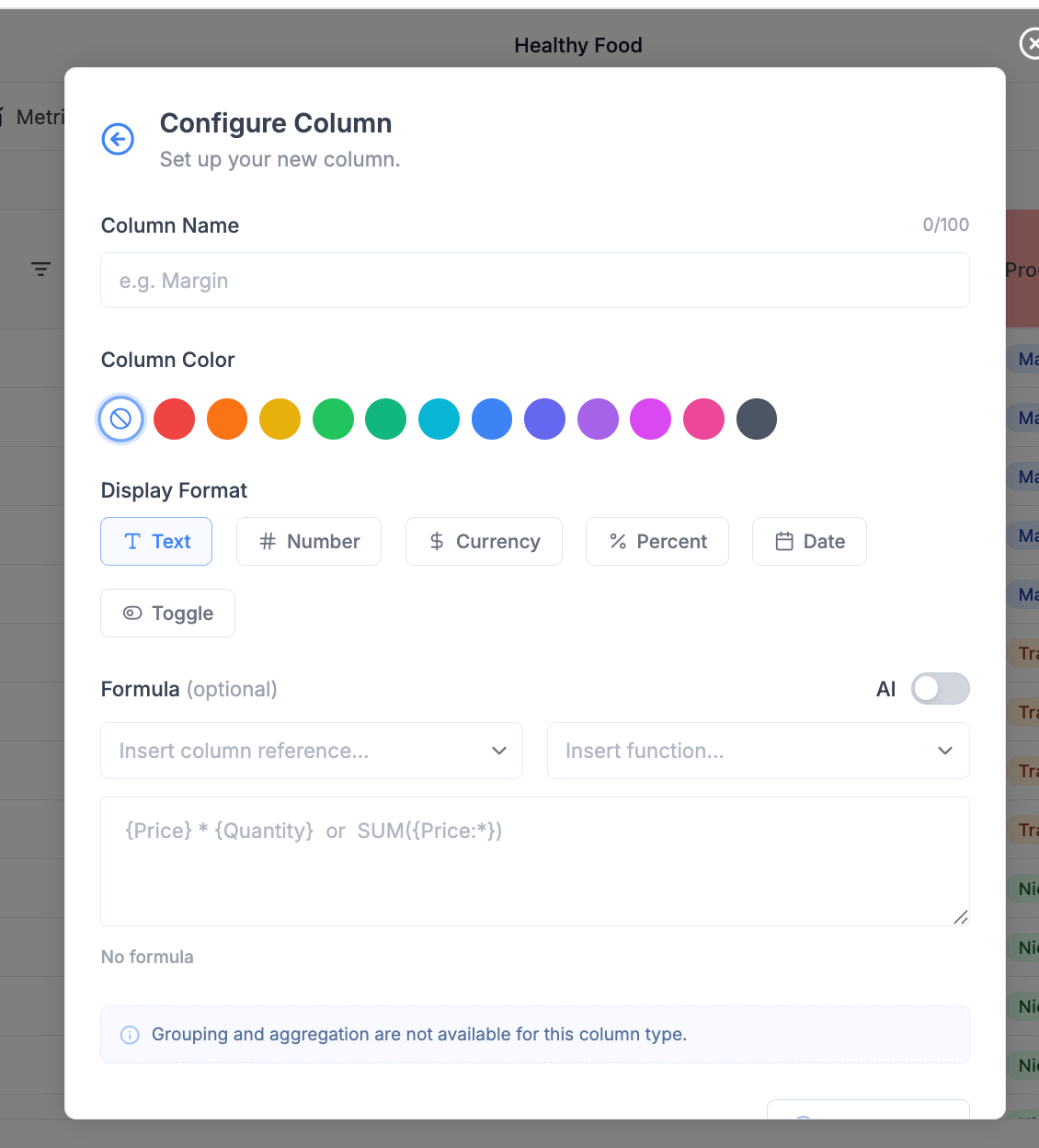
* Click **Columns → Add Column**
### Step 2: Select type
* Choose **Formula**
### Step 3: Configure column
#### 1. Name
Give a clear business name:
* `Margin %`
* `Revenue`
* `Price Index`
#### 2. Display format
Choose how results are shown:
| Format | Example |
| :--------- | :------ |
| Number | 123 |
| Currency | €123.45 |
| Percentage | 25% |
| Text | "High" |
#### 3. Build formula
You have three ways:
## 3. Building formulas
### 3.1 Manual input
Type directly:
```text theme={null}
({Price} - {Unit Cost}) / {Price}
```
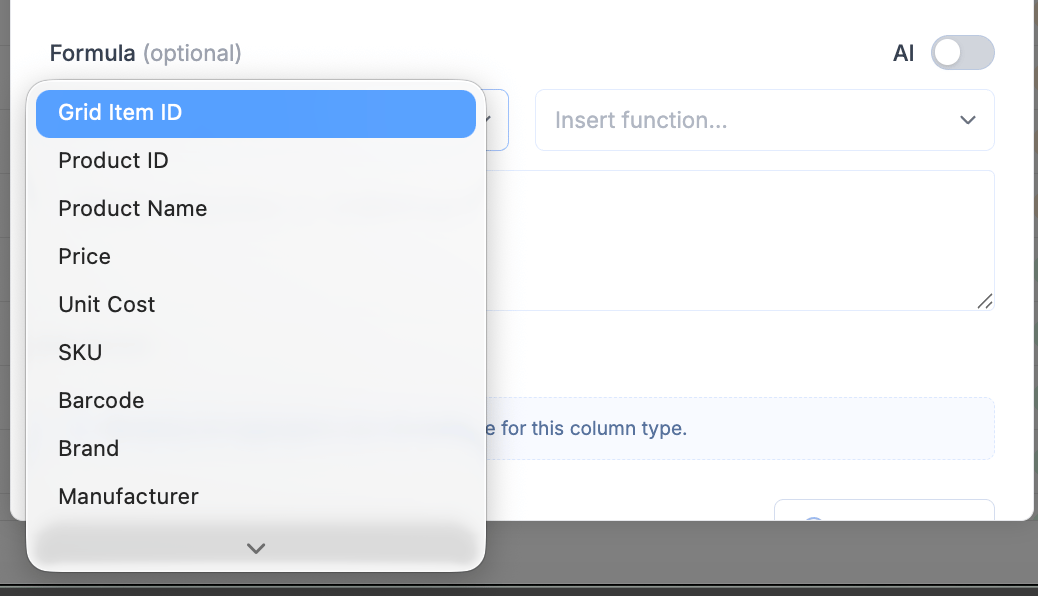
### 3.2 Insert column references
* Click **Insert column reference**
* Select fields from the list
## 2. How to create a formula column
### Step 1: Add column
* Click **Columns → Add Column**
### Step 2: Select type
* Choose **Formula**
### Step 3: Configure column
#### 1. Name
Give a clear business name:
* `Margin %`
* `Revenue`
* `Price Index`
#### 2. Display format
Choose how results are shown:
| Format | Example |
| :--------- | :------ |
| Number | 123 |
| Currency | €123.45 |
| Percentage | 25% |
| Text | "High" |
#### 3. Build formula
You have three ways:
## 3. Building formulas
### 3.1 Manual input
Type directly:
```text theme={null}
({Price} - {Unit Cost}) / {Price}
```
### 3.2 Insert column references
* Click **Insert column reference**
* Select fields from the list
 Example:
```text theme={null}
{Price} * {Quantity}
```
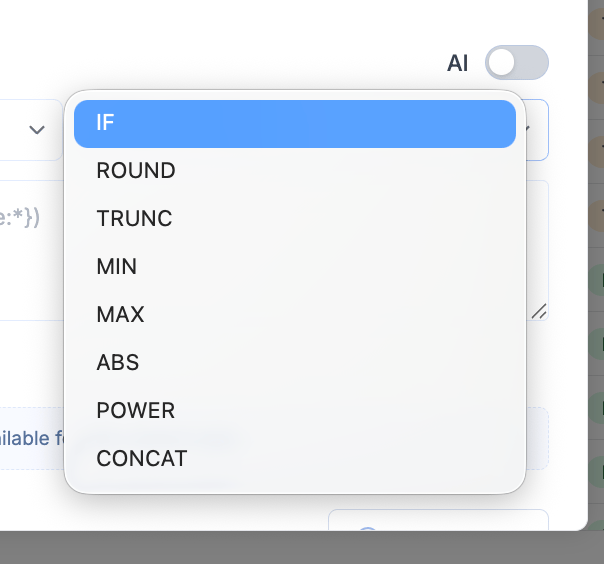
### 3.3 Insert functions
* Click **Insert function**
* Choose from list
Example:
```text theme={null}
ROUND({Price}, 2)
```
## Math and numeric functions
Example:
```text theme={null}
{Price} * {Quantity}
```
### 3.3 Insert functions
* Click **Insert function**
* Choose from list
Example:
```text theme={null}
ROUND({Price}, 2)
```
## Math and numeric functions
 ### `ROUND(value, digits)`
Rounds a number to a specified number of decimals.
**Example:**
```text theme={null}
ROUND({Price}, 2)
```
### `TRUNC(value, digits)`
Truncates a number without rounding.
**Example:**
```text theme={null}
TRUNC({Price}, 0)
```
### `PRODUCT(value1, value2, ...)`
Multiplies values.
**Example:**
```text theme={null}
PRODUCT({Price}, {Quantity})
```
### `POWER(base, exponent)`
Raises a number to a power.
**Example:**
```text theme={null}
POWER({Price}, 2)
```
### `RAND()`
Generates a random number between 0 and 1.
**Example:**
```text theme={null}
RAND()
```
## Aggregation functions
### `SUM(range)`
Returns sum of values.
```text theme={null}
SUM({Price})
```
### `SUMIF(range, condition)`
Conditional sum.
```text theme={null}
SUMIF({Sales}, {Category} = "Electronics")
```
### `MIN(range)`
Returns smallest value.
```text theme={null}
MIN({Price})
```
### `MAX(range)`
Returns largest value.
```text theme={null}
MAX({Price})
```
### `AVERAGE(range)`
Returns average.
```text theme={null}
AVERAGE({Price})
```
### `MEDIAN(range)`
Returns median value.
```text theme={null}
MEDIAN({Price})
```
## Counting functions
### `COUNT(range)`
Counts numeric values.
```text theme={null}
COUNT({Price})
```
### `COUNTA(range)`
Counts non-empty values.
```text theme={null}
COUNTA({Product Name})
```
### `COUNTBLANK(range)`
Counts empty cells.
```text theme={null}
COUNTBLANK({Price})
```
### `COUNTIF(range, condition)`
Counts values matching condition.
```text theme={null}
COUNTIF({Category}, "Electronics")
```
## Logical functions
### `IF(condition, value_if_true, value_if_false)`
Conditional logic.
```text theme={null}
IF({Price} > 100, "High", "Low")
```
String outputs from `IF()` pair well with [Conditional color highlighting](/grids/manage-columns#5-conditional-color-highlighting). Classify a row in a formula column, then map each classification to a color in the column header menu.
## Text functions
### `CONCAT(value1, value2, ...)`
Joins text values.
```text theme={null}
CONCAT({Brand}, " ", {Product Name})
```
## Date and time functions
### `NOW()`
Returns current date and time.
```text theme={null}
NOW()
```
### `TODAY()`
Returns current date.
```text theme={null}
TODAY()
```
## Operators (core syntax)
### Arithmetic
```text theme={null}
+ addition
- subtraction
* multiplication
/ division
```
### Comparison
```text theme={null}
= equal
!= not equal
> greater than
< less than
>= greater or equal
<= less or equal
```
## 4. Using AI to generate formulas
### Step 1: Enable AI
* Toggle **AI ON**
### `ROUND(value, digits)`
Rounds a number to a specified number of decimals.
**Example:**
```text theme={null}
ROUND({Price}, 2)
```
### `TRUNC(value, digits)`
Truncates a number without rounding.
**Example:**
```text theme={null}
TRUNC({Price}, 0)
```
### `PRODUCT(value1, value2, ...)`
Multiplies values.
**Example:**
```text theme={null}
PRODUCT({Price}, {Quantity})
```
### `POWER(base, exponent)`
Raises a number to a power.
**Example:**
```text theme={null}
POWER({Price}, 2)
```
### `RAND()`
Generates a random number between 0 and 1.
**Example:**
```text theme={null}
RAND()
```
## Aggregation functions
### `SUM(range)`
Returns sum of values.
```text theme={null}
SUM({Price})
```
### `SUMIF(range, condition)`
Conditional sum.
```text theme={null}
SUMIF({Sales}, {Category} = "Electronics")
```
### `MIN(range)`
Returns smallest value.
```text theme={null}
MIN({Price})
```
### `MAX(range)`
Returns largest value.
```text theme={null}
MAX({Price})
```
### `AVERAGE(range)`
Returns average.
```text theme={null}
AVERAGE({Price})
```
### `MEDIAN(range)`
Returns median value.
```text theme={null}
MEDIAN({Price})
```
## Counting functions
### `COUNT(range)`
Counts numeric values.
```text theme={null}
COUNT({Price})
```
### `COUNTA(range)`
Counts non-empty values.
```text theme={null}
COUNTA({Product Name})
```
### `COUNTBLANK(range)`
Counts empty cells.
```text theme={null}
COUNTBLANK({Price})
```
### `COUNTIF(range, condition)`
Counts values matching condition.
```text theme={null}
COUNTIF({Category}, "Electronics")
```
## Logical functions
### `IF(condition, value_if_true, value_if_false)`
Conditional logic.
```text theme={null}
IF({Price} > 100, "High", "Low")
```
String outputs from `IF()` pair well with [Conditional color highlighting](/grids/manage-columns#5-conditional-color-highlighting). Classify a row in a formula column, then map each classification to a color in the column header menu.
## Text functions
### `CONCAT(value1, value2, ...)`
Joins text values.
```text theme={null}
CONCAT({Brand}, " ", {Product Name})
```
## Date and time functions
### `NOW()`
Returns current date and time.
```text theme={null}
NOW()
```
### `TODAY()`
Returns current date.
```text theme={null}
TODAY()
```
## Operators (core syntax)
### Arithmetic
```text theme={null}
+ addition
- subtraction
* multiplication
/ division
```
### Comparison
```text theme={null}
= equal
!= not equal
> greater than
< less than
>= greater or equal
<= less or equal
```
## 4. Using AI to generate formulas
### Step 1: Enable AI
* Toggle **AI ON**
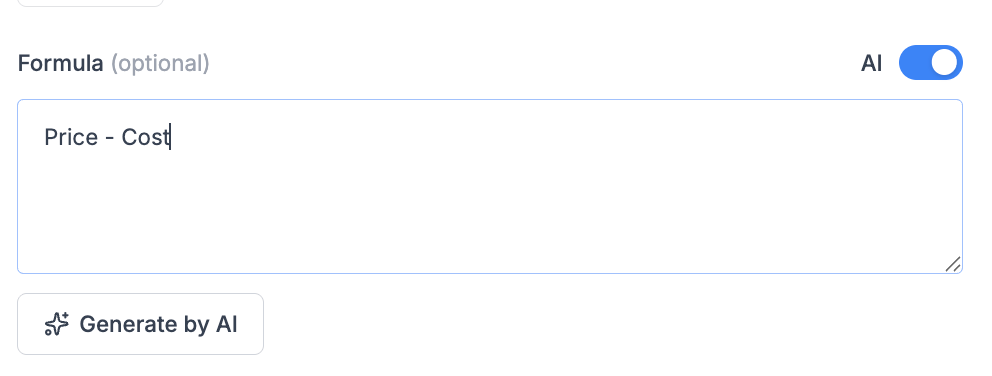 ### Step 2: Describe logic
Example inputs:
* "Margin"
* "Revenue = price times quantity"
* "Discount percent"
### Step 3: Generate
* Click **Generate by AI**
The system will:
* Create the formula
* Validate the syntax
## 5. Validation and feedback
After writing a formula:
* **Formula is valid** - ready to use.
* **Errors** - fix syntax or references.
Common issues:
* Missing `{}` around columns
* Invalid function usage
* Division by zero (logic issue)
## 6. Key concepts
### 6.1 Row-level calculation
Formulas work **per row**.
Example:
```text theme={null}
{Price} * {Quantity}
```
Calculates revenue per product.
### 6.2 Column references
Always use `{}`.
Correct:
```text theme={null}
{Price}
```
Wrong:
```text theme={null}
Price
```
### 6.3 Functions
Used for:
* Aggregation
* Logic
* Transformation
Example:
```text theme={null}
IF({Price} > 100, "High", "Low")
```
## 7. Common use cases
### Pricing
**Margin %**
```text theme={null}
({Price} - {Unit Cost}) / {Price}
```
**Price Gap vs Competitor**
```text theme={null}
({Price} - {Competitor Price}) / {Competitor Price}
```
### Revenue
**Revenue**
```text theme={null}
{Price} * {Quantity}
```
### Classification
**Price Tier**
```text theme={null}
IF({Price} > 100, "Premium", "Standard")
```
### Promotions
**Discount %**
```text theme={null}
({Original Price} - {Price}) / {Original Price}
```
## 8. Best practices
### Naming
* Use business terms, not technical ones
* Prefer:
* `Gross Margin %`
* `Net Revenue`
### Simplicity
* Avoid overly complex formulas
* Break into multiple columns if needed
### Reusability
* Build intermediate columns:
* `Margin`
* `Revenue`
* Then reuse in other formulas
### Performance
* Avoid heavy nested formulas on large datasets
* Prefer simpler expressions
## 9. Limitations
* Some column types do not support aggregation
* Text fields cannot be used in numeric calculations
* No multi-row / window functions (yet)
## 10. Recommended workflow
1. Ensure base data exists (Price, Cost, etc.)
2. Create core metrics:
* Revenue
* Margin
3. Add derived insights:
* Classification
* Flags
4. Refine with AI or manual tuning
## 11. Troubleshooting
| Issue | Fix |
| :------------ | :---------------------- |
| Formula error | Check syntax |
| Empty results | Check null values |
| Wrong numbers | Validate input columns |
| Not updating | Check column references |
### Step 2: Describe logic
Example inputs:
* "Margin"
* "Revenue = price times quantity"
* "Discount percent"
### Step 3: Generate
* Click **Generate by AI**
The system will:
* Create the formula
* Validate the syntax
## 5. Validation and feedback
After writing a formula:
* **Formula is valid** - ready to use.
* **Errors** - fix syntax or references.
Common issues:
* Missing `{}` around columns
* Invalid function usage
* Division by zero (logic issue)
## 6. Key concepts
### 6.1 Row-level calculation
Formulas work **per row**.
Example:
```text theme={null}
{Price} * {Quantity}
```
Calculates revenue per product.
### 6.2 Column references
Always use `{}`.
Correct:
```text theme={null}
{Price}
```
Wrong:
```text theme={null}
Price
```
### 6.3 Functions
Used for:
* Aggregation
* Logic
* Transformation
Example:
```text theme={null}
IF({Price} > 100, "High", "Low")
```
## 7. Common use cases
### Pricing
**Margin %**
```text theme={null}
({Price} - {Unit Cost}) / {Price}
```
**Price Gap vs Competitor**
```text theme={null}
({Price} - {Competitor Price}) / {Competitor Price}
```
### Revenue
**Revenue**
```text theme={null}
{Price} * {Quantity}
```
### Classification
**Price Tier**
```text theme={null}
IF({Price} > 100, "Premium", "Standard")
```
### Promotions
**Discount %**
```text theme={null}
({Original Price} - {Price}) / {Original Price}
```
## 8. Best practices
### Naming
* Use business terms, not technical ones
* Prefer:
* `Gross Margin %`
* `Net Revenue`
### Simplicity
* Avoid overly complex formulas
* Break into multiple columns if needed
### Reusability
* Build intermediate columns:
* `Margin`
* `Revenue`
* Then reuse in other formulas
### Performance
* Avoid heavy nested formulas on large datasets
* Prefer simpler expressions
## 9. Limitations
* Some column types do not support aggregation
* Text fields cannot be used in numeric calculations
* No multi-row / window functions (yet)
## 10. Recommended workflow
1. Ensure base data exists (Price, Cost, etc.)
2. Create core metrics:
* Revenue
* Margin
3. Add derived insights:
* Classification
* Flags
4. Refine with AI or manual tuning
## 11. Troubleshooting
| Issue | Fix |
| :------------ | :---------------------- |
| Formula error | Check syntax |
| Empty results | Check null values |
| Wrong numbers | Validate input columns |
| Not updating | Check column references |