> ## Documentation Index
> Fetch the complete documentation index at: https://docs.retailgrid.io/llms.txt
> Use this file to discover all available pages before exploring further.
# Agents overview
> What agents are in Retailgrid, the agents available today, and the workflows that work the same way across all of them.
An **agent** is something Retailgrid runs *for* you against a grid - a pricing rule engine, an optimizer, or a presentation generator. Agents take the products in a grid as input, execute on Retailgrid's backend, and write their results back to the grid as new columns or as a separate artifact (e.g. a Gamma deck).
Agents are how you go from looking at data to acting on it.
## Available agents
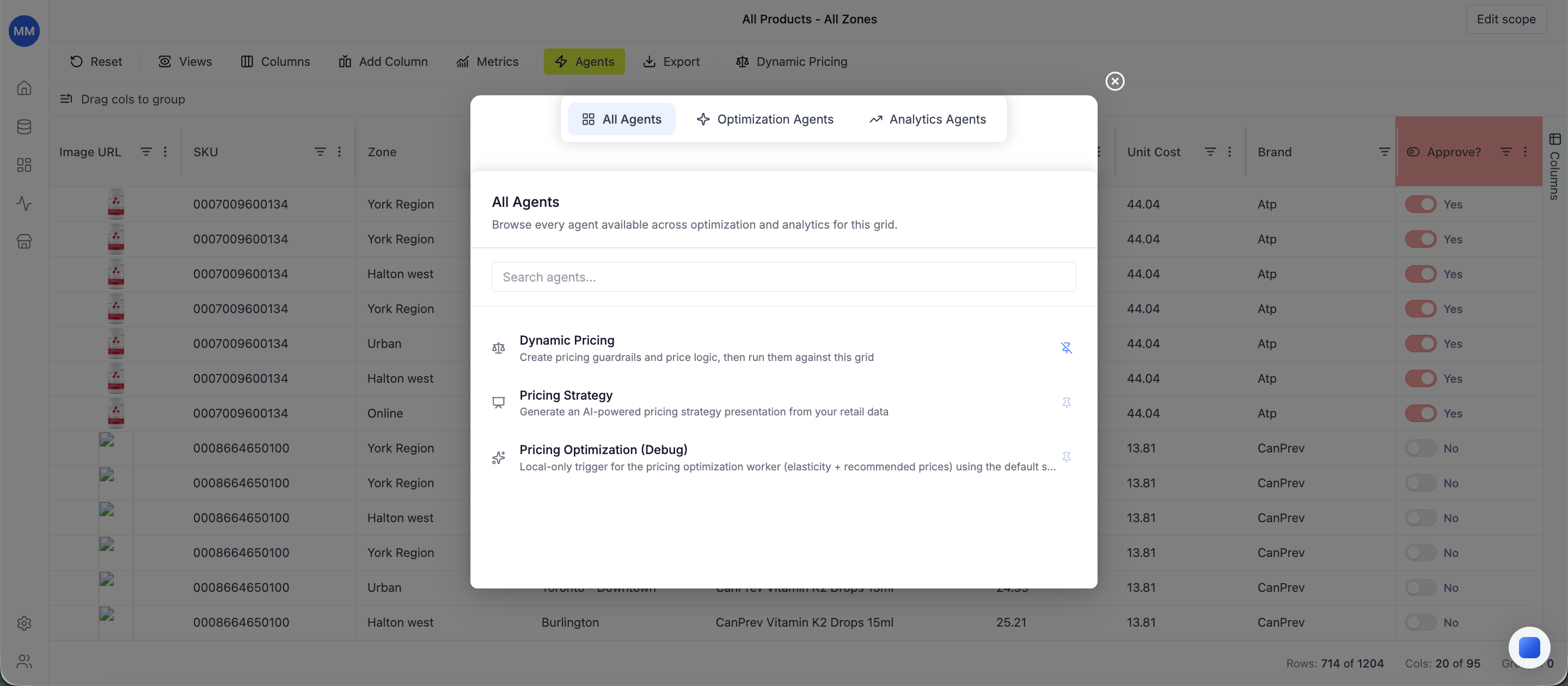
Click **Agents** in the grid toolbar to open the All Agents modal. The agents currently available:
| Agent | What it does | When to use it |
| :--------------------- | :----------------------------------------------------------------------------------------------------------------------------------------------------------------------------------- | :------------------------------------------------------------------------------------------------------------------------------------------------------------ |
| **Dynamic Pricing** | Run pricing rules (margin floors, competitor matching, percentage changes, etc.) against the grid and write the resulting prices back. | You know the pricing logic you want and want it applied consistently across SKUs. |
| **Price Optimization** | AI-powered optimal price recommendations - elasticity-driven and demand-aware. | You want suggested optimal prices instead of writing the rules yourself. |
| **Pricing Strategy** | Generates an AI-powered pricing-strategy presentation (Gamma deck) from your portfolio data over any of seven historical timeframes (last 7 / 30 / 90 days, QTD, YTD, T12M, custom). | Quarterly business reviews, board decks, and pricing-strategy conversations with stakeholders - now driven by real grid data and your account's company name. |
The All Agents modal has three tabs - **All Agents**, **Optimization Agents**, and **Analytics Agents** - plus a search field for jumping straight to an agent by name.
**Dynamic Pricing** was previously called **Rules Based Pricing** - same agent, new name.
 ## Pin agents you use often
Each agent in the All Agents modal has a pin icon. Click it to pin the agent to the grid toolbar - it appears as a compact button between **Agents** and **Export**. Click a pinned button to open that agent's configuration directly without opening the modal first.
Use pinning when you run the same agent on every grid (most teams pin Dynamic Pricing).
## Configure manually or by AI
Most agents expose a dedicated **Config by AI** section alongside their configuration tabs. Describe what you want in plain language and Retailgrid generates the configuration into the tabs for you to review before saving. You can keep using the tabs directly to enter or edit the configuration manually at any time - the AI section and the tabs are independent surfaces, so you're never locked into one or the other.
The AI configuration speed-up is most useful for Dynamic Pricing, where the rule grammar takes a moment to learn.
## Save and load configurations
For agents that take meaningful setup (Dynamic Pricing), click **Config Manager** in the agent dialog to save the current configuration as a named config and reload it later - on the same grid or on a different one.
This is the right move when:
* A rule set works for one category and you want to reuse it on another.
* You're iterating on parameters and want a clean restore point.
* A teammate needs to run "the same thing I ran last week."
## Read the Price Analysis panel
When an agent writes its result back to the grid (e.g. Dynamic Pricing's calculated price), click the result cell to open the right-side **Price Analysis** panel. It shows what produced that value - which rules applied, which were violated, what inputs were used, and how the run affected unit margin.
The Price Analysis panel is the answer to "why did the agent give me this number?"
## See what's running and what ran
Every agent execution shows up in the **Runs** section in the left sidebar - status, duration, who triggered it, and the output. The Runs nav icon also shows a small badge with the count of currently running jobs. If an agent fails or partially succeeds, the Runs page is where you see the error.
## Related
* [Dynamic Pricing](/agents/dynamic-pricing)
* [Price Optimization](/agents/price-optimization)
* [Pricing Strategy](/agents/pricing-strategy)
* [Runs](/runs/overview)
## Pin agents you use often
Each agent in the All Agents modal has a pin icon. Click it to pin the agent to the grid toolbar - it appears as a compact button between **Agents** and **Export**. Click a pinned button to open that agent's configuration directly without opening the modal first.
Use pinning when you run the same agent on every grid (most teams pin Dynamic Pricing).
## Configure manually or by AI
Most agents expose a dedicated **Config by AI** section alongside their configuration tabs. Describe what you want in plain language and Retailgrid generates the configuration into the tabs for you to review before saving. You can keep using the tabs directly to enter or edit the configuration manually at any time - the AI section and the tabs are independent surfaces, so you're never locked into one or the other.
The AI configuration speed-up is most useful for Dynamic Pricing, where the rule grammar takes a moment to learn.
## Save and load configurations
For agents that take meaningful setup (Dynamic Pricing), click **Config Manager** in the agent dialog to save the current configuration as a named config and reload it later - on the same grid or on a different one.
This is the right move when:
* A rule set works for one category and you want to reuse it on another.
* You're iterating on parameters and want a clean restore point.
* A teammate needs to run "the same thing I ran last week."
## Read the Price Analysis panel
When an agent writes its result back to the grid (e.g. Dynamic Pricing's calculated price), click the result cell to open the right-side **Price Analysis** panel. It shows what produced that value - which rules applied, which were violated, what inputs were used, and how the run affected unit margin.
The Price Analysis panel is the answer to "why did the agent give me this number?"
## See what's running and what ran
Every agent execution shows up in the **Runs** section in the left sidebar - status, duration, who triggered it, and the output. The Runs nav icon also shows a small badge with the count of currently running jobs. If an agent fails or partially succeeds, the Runs page is where you see the error.
## Related
* [Dynamic Pricing](/agents/dynamic-pricing)
* [Price Optimization](/agents/price-optimization)
* [Pricing Strategy](/agents/pricing-strategy)
* [Runs](/runs/overview)